

Portal management
Manage connected HubSpot portals and their installations.
A portal represents a connected HubSpot account. Each portal can contain one or more Sprocket Rocket installations. The portal's license (Free, Core, Stack, or PRO) decides which modules and templates its installations can use.
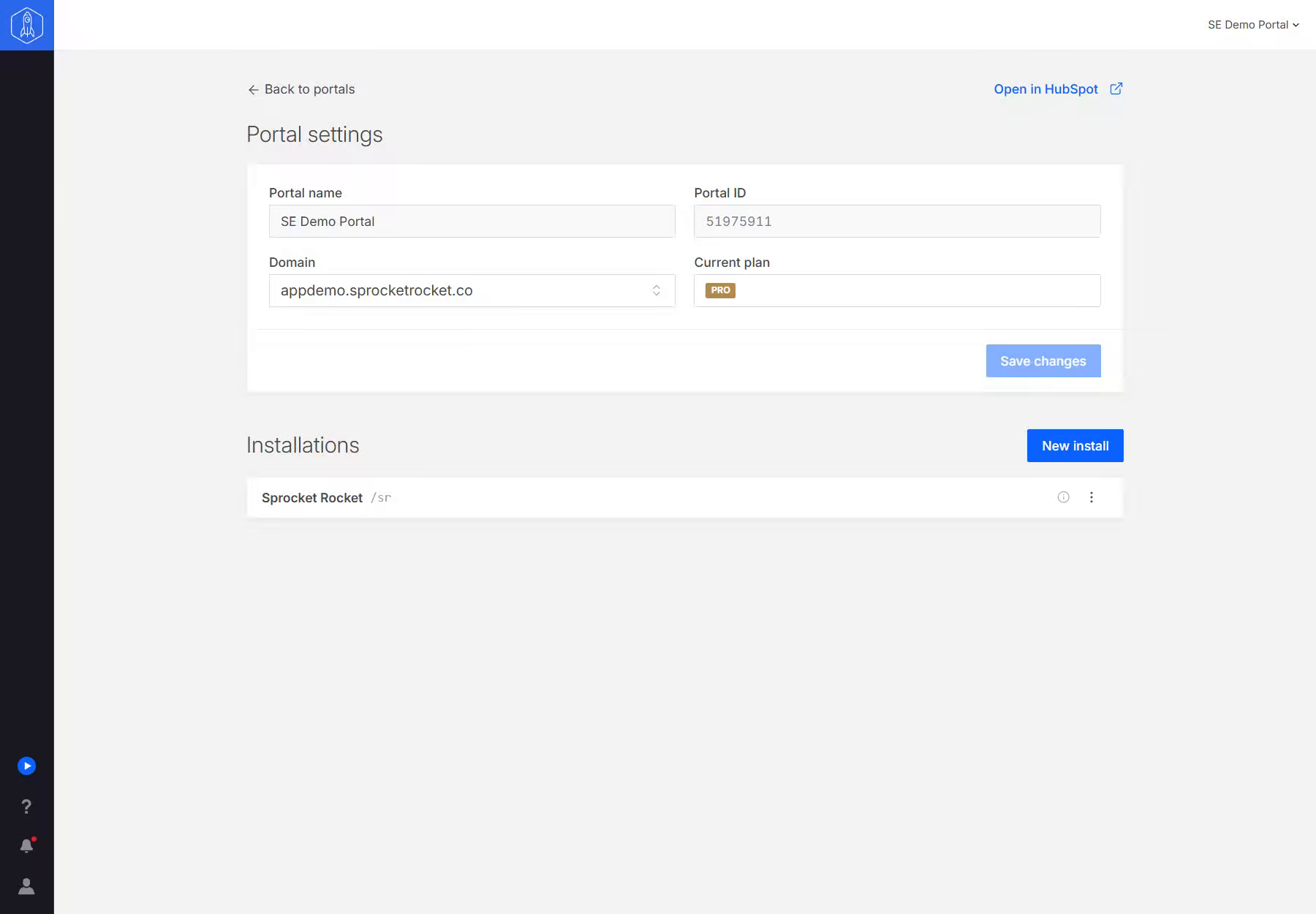
Open a portal to see Portal settings and its Installations:
- Portal settings shows the Portal name, Portal ID, Domain, and Current plan. Organization owners and admins can edit the name and domain, select Upgrade plan to change the portal's license, and use Transfer portal or Delete portal.
- Installations lists the installations in the portal. Select Add theme to install Sprocket Rocket or to connect A theme already in HubSpot, or open an installation's Actions menu to edit, back up, restore, or remove it. A connected portal with nothing installed shows only an Add theme card.
Start with adding a portal.
Each installation has its own Backups history. Create a manual backup before changing custom code or applying a major update. The backup guides explain how to recover an entire installation, one module, or one file, including older legacy installations.
Reconnect a portal
Reconnecting, sometimes called reauthenticating, renews the portal's HubSpot connection without changing its installations, pages, or settings. Only organization owners and admins can reconnect.
Reconnect when:
- the portal shows Reconnect required, because HubSpot no longer accepts its connection
- the app asks for permissions Sprocket Rocket now needs
- Sprocket Rocket shows a Reconnect HubSpot card because the connection is missing the File Manager, HubDB, or analytics permission. See Images and alt text and HubDB tables.
Open the portal and select Reconnect. The button is there for connected portals too, because a new permission only arrives with a fresh connection. HubSpot asks you to approve the permissions again and then brings you back. Sign in to the same HubSpot account: if HubSpot returns a different account, the app refuses it and asks you to try again.
If a permission stays off however many times you reconnect, a HubSpot Super Admin has switched it off for the account. Follow A permission stays off after reconnecting.