

Templates
Browse an installation's page templates, system pages, and building blocks, and change or create them.
Templates in the top bar lists the installation's Design Manager templates, grouped into Page templates, System pages, Blog templates, and Building blocks. A group only shows when the theme has templates of that kind. Search by name, or filter by type with the All types dropdown. Blog templates also show under Blogs, and email templates are under Emails.
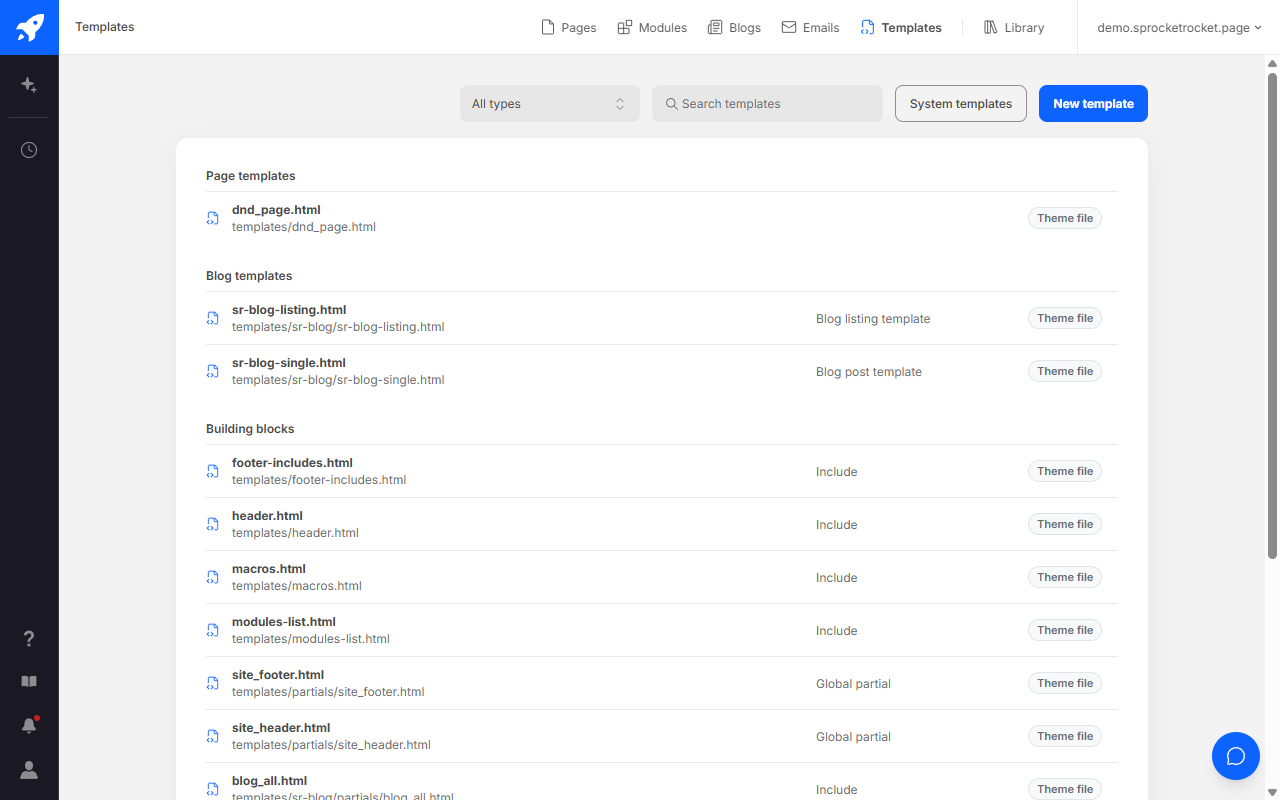
System templates opens Sprocket Rocket's system templates in the Library. If HubSpot drops the portal's connection, the list shows HubSpot needs reconnecting, with Reconnect for organization owners and admins.
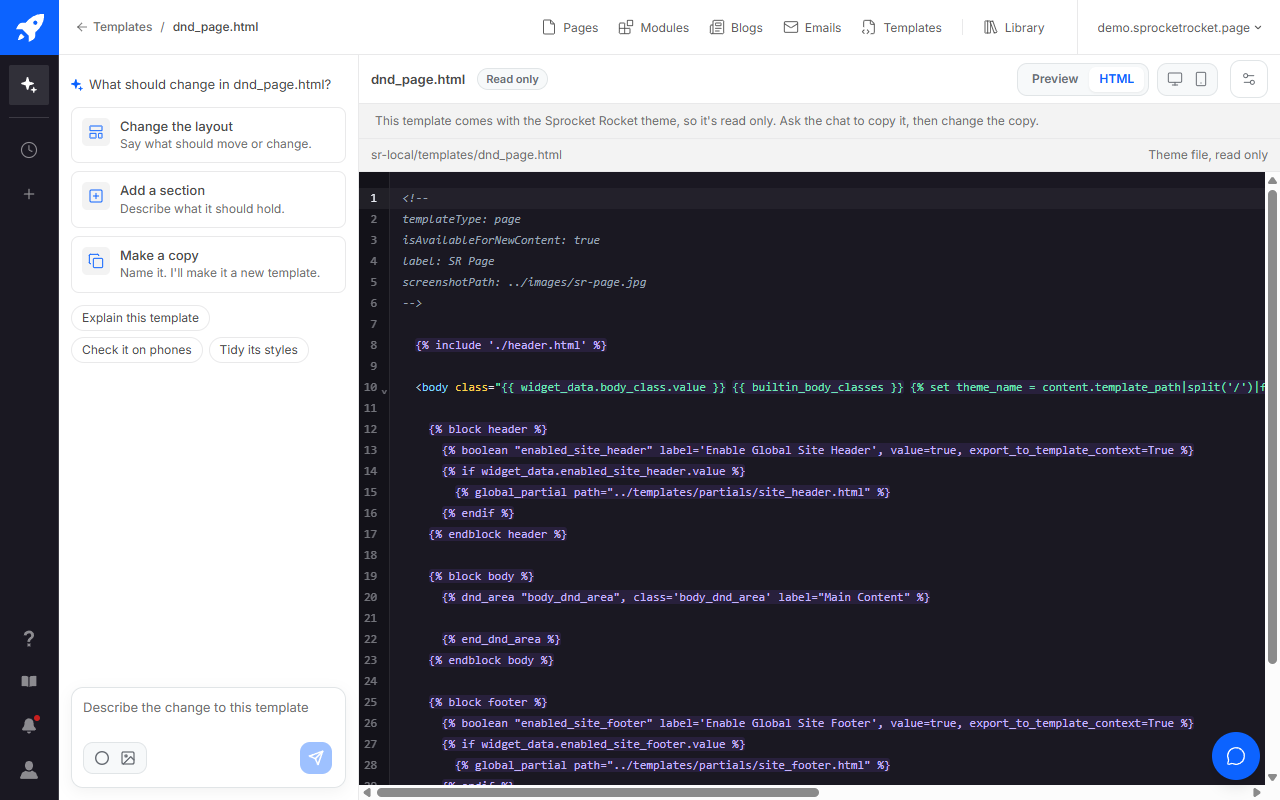
Open a template to see its preview beside the chat, at Desktop or Phone width. HTML shows its code, and CSS and JS tabs appear when the template has those files. The settings menu in the toolbar has Refresh, Edit in HubSpot, which opens the Design Manager, and Open preview in new tab.
Change a template
Tell the chat what you want, or edit the files yourself and select Save, or press Ctrl+S (Cmd+S on a Mac). Ctrl+F (Cmd+F) searches and replaces. Your changes are saved as unpublished changes.
- Publish changes puts the template and its files live, and everything built on the template changes as soon as you publish.
- Discard changes puts the template and its files back to their published versions.
- If someone else changed a file while you had it open, Use latest loads their version.
Some files are read-only. A file marked Theme file belongs to a Sprocket Rocket theme package, which an update would overwrite. It opens marked Read only, and its code can't be edited, so ask Sprocket Rocket for a copy and change that instead. HubSpot's and a Marketplace theme's files can't change either.
Create a template
Select New template, or ask in the chat, and choose the kind: a page template, an error page, a password or search results page, a subscription or membership page, a global partial, or a section. Sprocket Rocket writes it with its own stylesheet and opens it here.
How a template goes live depends on its kind:
- A page template can be used for new pages once it's published.
- A system page goes live once it's chosen in HubSpot: Settings, Website, Pages, System pages.
- A global partial shows wherever a template includes it, and a section shows in the sections people add to drag and drop pages.
Marketplace themes and asset folders
- Marketplace theme: HubSpot locks the theme's own templates, so this screen lists the templates in the asset folder beside it. New ones go there too. They bring their own styles, because the theme's settings aren't available outside it.
- Child theme: you can change the templates stored in the child theme and add new ones. Inherited templates stay with the parent.
- Shared asset folder: lists the folder's own templates.