

Module Builder
Create HubSpot modules and edit their HTML, CSS, JavaScript, and fields, with a live preview.
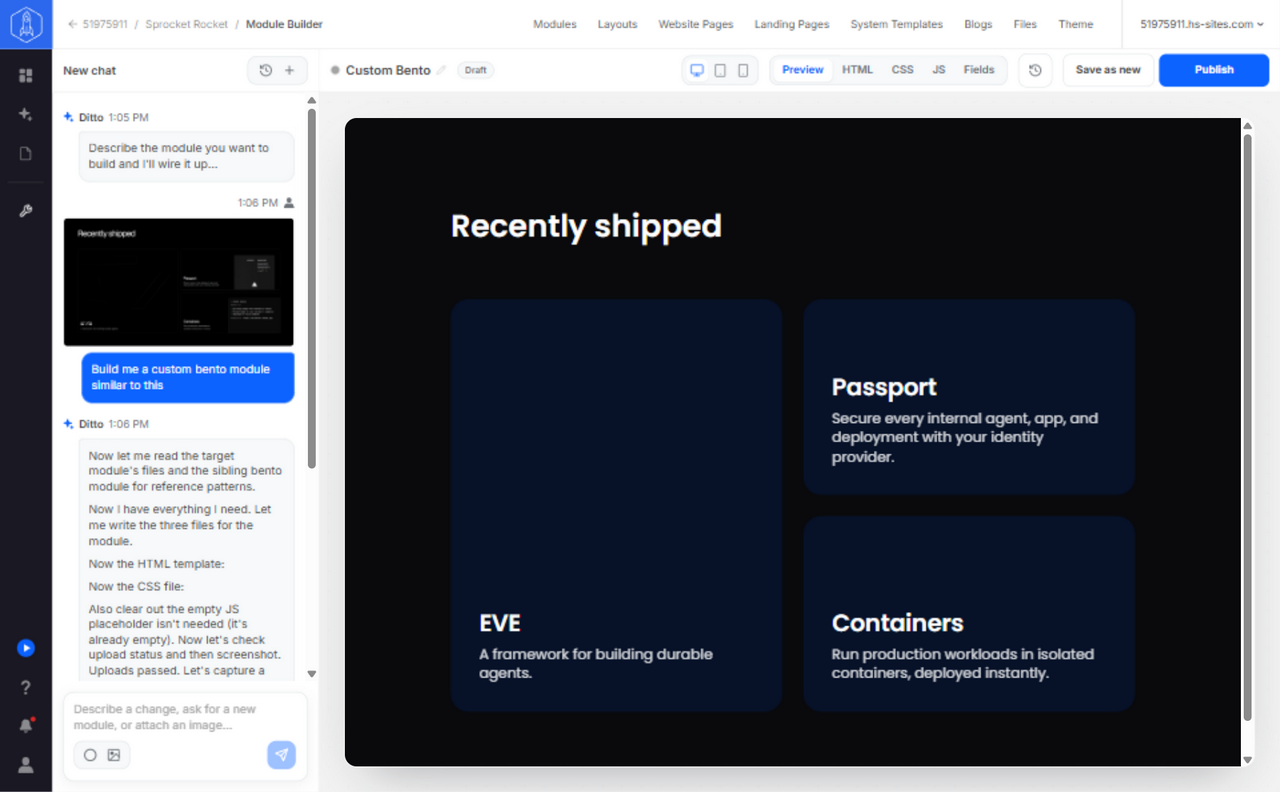
Module Builder is where you work on a HubSpot module's code in Sprocket Rocket: its HTML, CSS, JavaScript, and HubSpot fields. Use it for the module work you would normally do in HubSpot's design tools. It has a live preview beside the code, and it publishes straight to the connected portal.
Sprocket Rocket AI works in Module Builder too. Describe a change and it writes it while you watch the preview. For page content and the arrangement of modules on a page, use Page Builder.
Open Module Builder
- From the Page Builder rail, select Module Builder to pick any module in the installation.
- From the canvas in Page Builder, use the selected module's toolbar to open it in Module Builder.
- From Module management, use Clone and edit on a module to open a copy of it.
- From a module card in Page Builder chat, select Open in Module Builder. When a module doesn't render, the card offers Fix in Module Builder instead.
A stock Sprocket Rocket module is never edited in place. Clone it first, then change the copy.
You don't always need to open Module Builder yourself. When Sprocket Rocket needs a module the library doesn't have while it works in Page Builder, it proposes a module card. Once you confirm it, Module Builder builds and publishes the module in the background, and Sprocket Rocket places it on the page. See Build and change modules.
Work with Sprocket Rocket AI
Describe the module you want, or the change to make, in the chat beside the preview. Attach a reference image when the look matters. The preview updates as Sprocket Rocket works, so you can check the result before you publish. A module card's Module Builder chat holds its whole history, including any question you answered with Reply.
This work uses the organization's AI usage. See Sprocket Rocket AI.
Code tabs
Use the tabs above the preview to read or edit each part of the module:
- HTML holds the HubL markup and module structure.
- CSS holds the module's own styles.
- JS holds the module's browser behavior.
- Fields holds the HubSpot fields people edit on the page.
Switch back to Preview to see the assembled result.
Responsive preview
Use the Desktop, Tablet, and Phone controls beside the code tabs to check the module at common widths. Check text wrapping, spacing, navigation, and controls in all three. The preview is a quick check. Test the published module on a real page too.
Save and publish
Use Save as new when the work should become a separate module instead of replacing the current one. Select Publish only when the preview and code match the change you wanted. Once the module is in HubSpot, the button reads Update. Publishing a change to one of the portal's own modules updates every page that uses it, live pages included.
Use module management to install, update, unlock, or clone modules. Read Backups and rollback before you publish changes to an existing module.
Where Module Builder is available
| Installation | Module Builder |
|---|---|
| Sprocket Rocket theme | Available. |
| Custom theme | Available once the theme's previews are ready. |
| Shared asset folder | Available. It's the folder's only workspace, since pages aren't built there. |
| Marketplace theme | Not available. HubSpot locks Marketplace files. See Module Builder with a Marketplace theme. |
| Child theme | Not available. A child theme inherits files from its parent, which Module Builder can't preview. |