

Page Builder
Create a page, add modules, arrange sections and columns, and publish it to HubSpot.
Page Builder is where you build and edit HubSpot pages in Sprocket Rocket. Use it for anything you would normally do in HubSpot's page editor: add and arrange modules, edit their content, check the page at each screen size, and publish. The canvas shows the page's HubSpot draft, and the header reads Page editor.
Sprocket Rocket AI works in Page Builder too. Ask it for a change and it edits the same draft, so you can build by hand, with AI, or both. You never get a second copy of the page. For a module's code and fields, use Module Builder.
The rail
The rail on the left opens:
| Rail item | What it opens |
|---|---|
| Sprocket Rocket AI | The AI chat for the open page. Opening an installation lands here, on the home chat. |
| Add modules | The module palette. Drag a module onto the canvas. |
| Pages | The installation's website and landing pages. |
| Module Builder | Module Builder, for fixing or refining a module's HTML, CSS, JS, and fields. |
Create a page
Select New page in the toolbar, or Create New Page in the Pages list. An empty editor opens straight away.
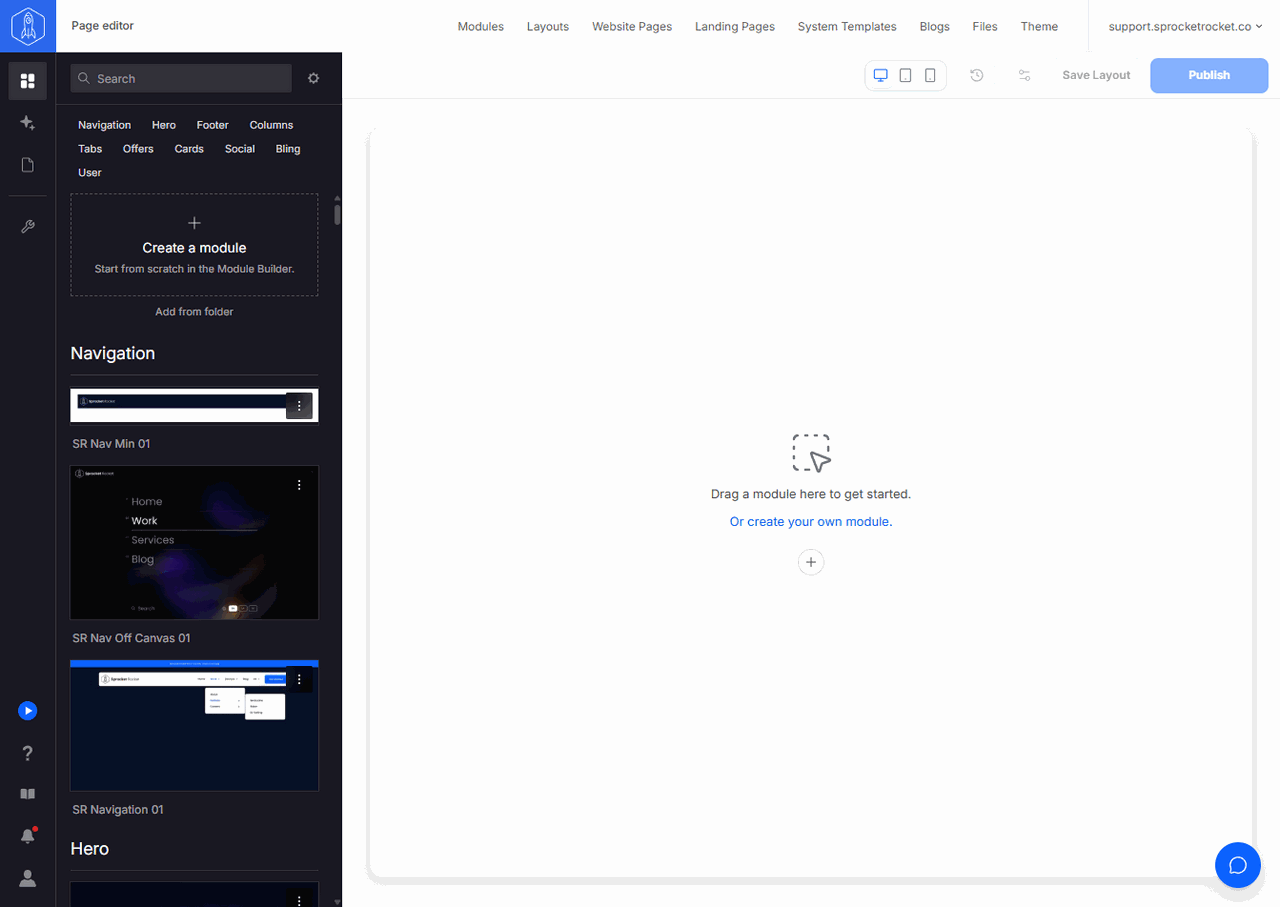
The page isn't created in HubSpot until you make your first edit or send your first chat message. A new page you leave without adding anything is removed again.
The page type comes from the tab you started on in Pages: Website Pages or Landing Pages. To change it later, open Page settings and choose Page type. If the portal has no room left for that page type, the app creates the other type instead and tells you.
Add modules
Select Add modules in the rail to open the module palette. Search for a module and drag it onto the canvas. A module that isn't installed on the portal yet is installed when you drop it. A locked module needs a higher license or a credit first: open its menu in the palette and select Unlock. See Unlock modules.
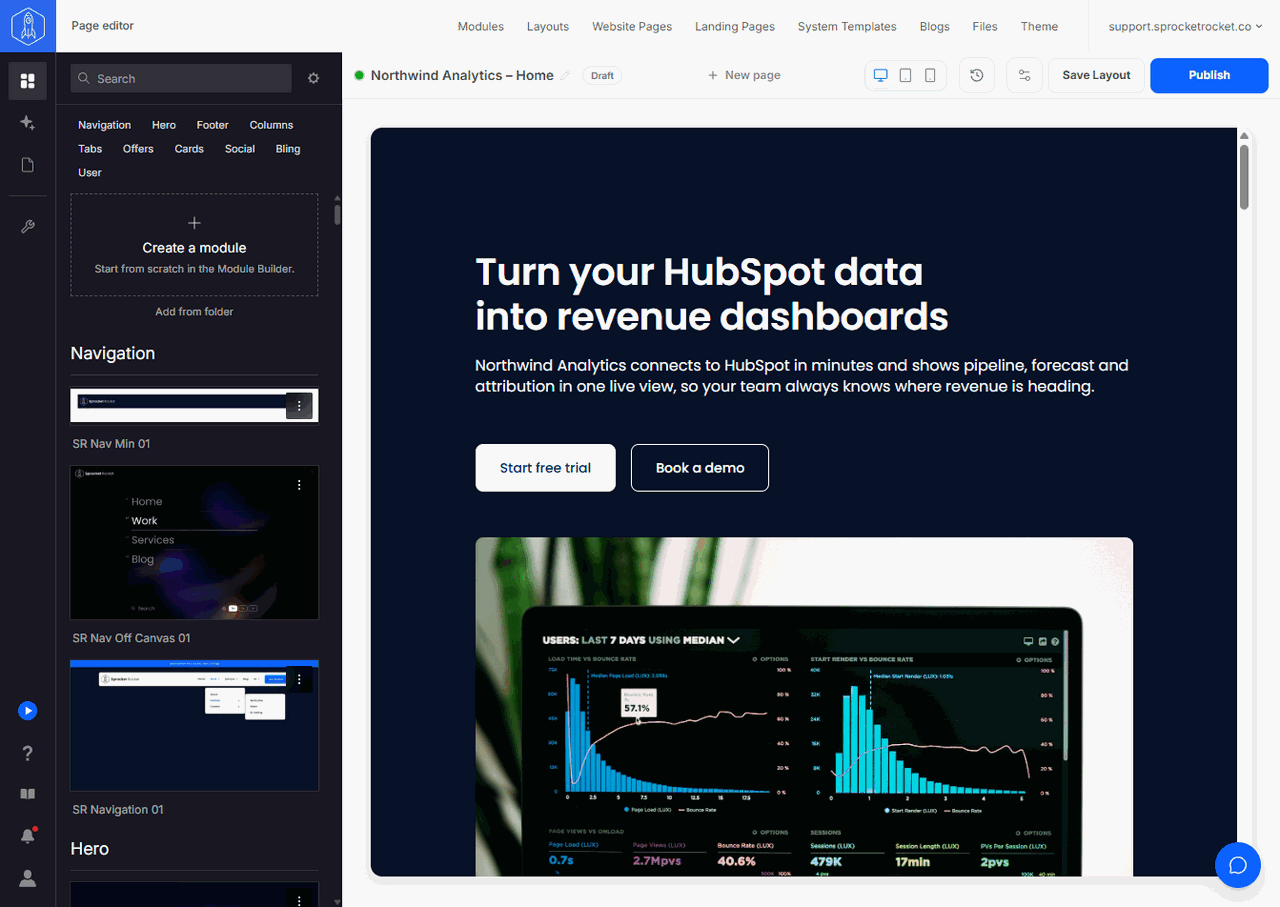
Use Add from folder to place a module from a shared asset folder in the same portal. Use a saved layout when you already have the structure you need, and Save Layout in the toolbar to keep this page's structure for later.
When no module does what you need, Sprocket Rocket AI can have one built. See Build and change modules.
Sections and columns
Every theme uses HubSpot's 12-column grid. Select Add section to add a row, then choose a Section layout: one to four equal columns, a third and two thirds, or Custom widths. Drag the line between two columns to resize them. A column can hold several modules stacked on top of each other, and you can drag a module from one column to another.
Section controls move or delete the whole section. Module controls affect only that module. Deleting a column deletes the modules in it, and the other columns widen to fill the row.
Section settings
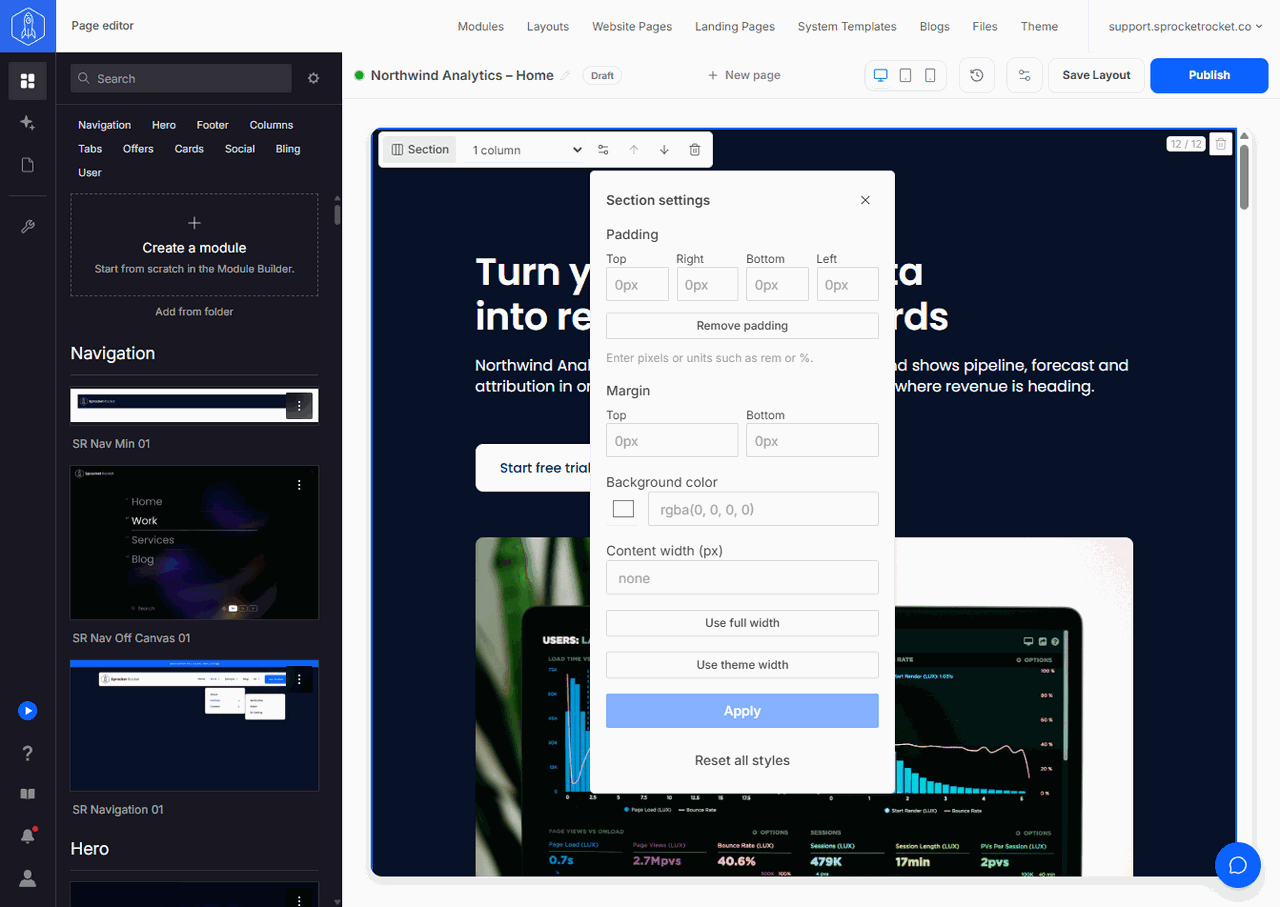
Open a section's settings to change its padding, top and bottom margin, background color, and content width. Use full width stretches the section to the edges, and Use theme width goes back to the theme's width. Remove padding sets all four sides to zero, and Reset all styles clears everything you set. Sprocket Rocket AI can change the same settings.
Edit by hand
Click text on the canvas to edit it in place. The floating toolbar formats rich text. Press Ctrl+Enter (Cmd+Enter on a Mac) or click outside the text to save, and Escape to cancel. Select an image, button, or heading to open its settings. Global header and footer content is edited in HubSpot; the canvas says so when you select it. Hide header and footer hides them in your editor only and never changes the page.
Use the Desktop, Tablet, and Phone controls to check the page at each size.
Open Page settings from the page menu in the toolbar to change the page title, URL, meta description, and social sharing image. See Page settings and SEO.
Work with Sprocket Rocket AI
Select Sprocket Rocket AI in the rail and describe the page or the change you want. It can build a page from your modules, rebuild a page you link, write titles and alt text, and propose redirects, A/B tests, and translations. Your edits and Sprocket Rocket's land on the same draft, so you can let it draft a page and then adjust it by hand. See Work with Sprocket Rocket AI and what Sprocket Rocket AI can do.
Version history
Every change saves a restore point, whether you made it or Sprocket Rocket did. Open Version history from the toolbar to see them. Its changes are marked Sprocket Rocket.

Select Restore to put the page back to a version. The current state is kept as a restore point too, so you can undo a restore. Use Save version to name a version you want to find again.
Publish
Select Publish in the toolbar. The dialog shows the page settings HubSpot needs to publish, which you can change later in Page settings. On a page that is already live, the button is Update, and it replaces the live page with the current draft.
After publishing, choose View page, Edit in HubSpot, or Start a new page.