
Emails
Preview your portal's marketing emails, edit them with Sprocket Rocket AI or in code, and create new ones.
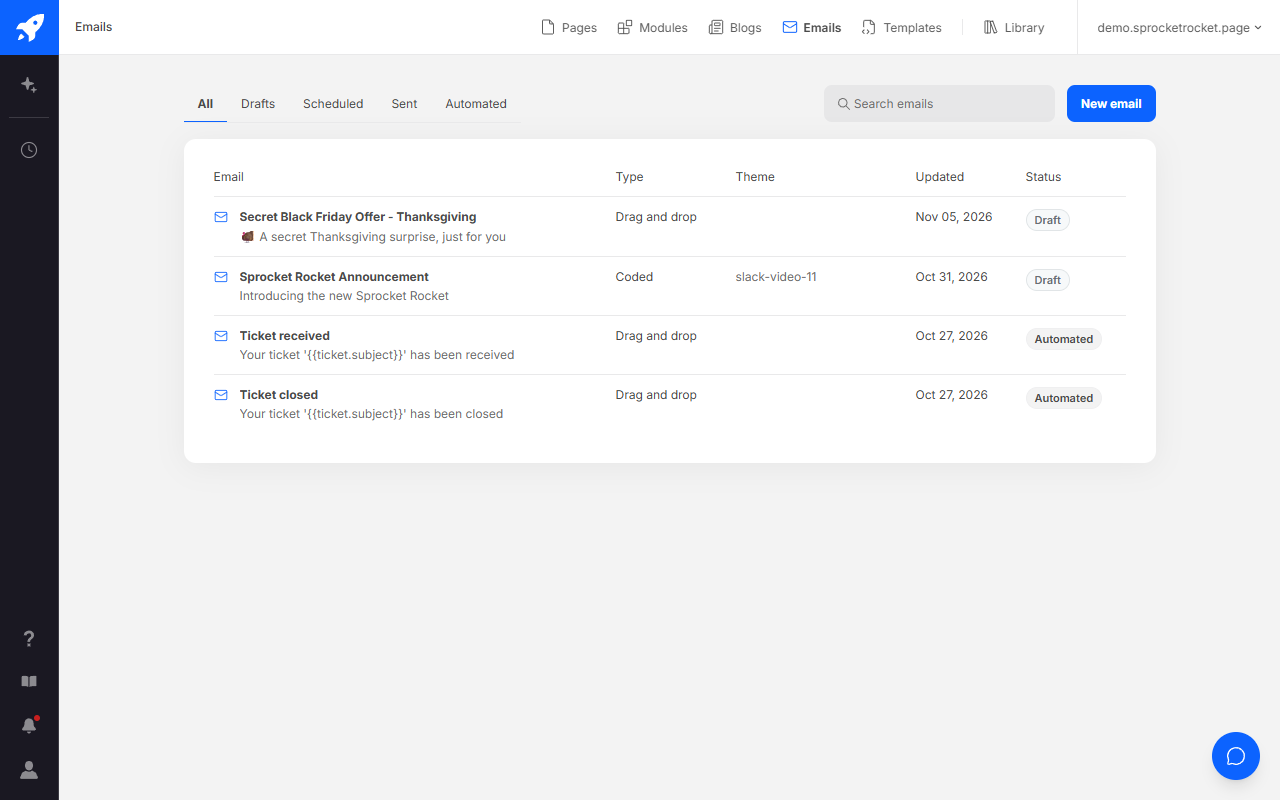
Emails in the top bar lists your portal's HubSpot marketing emails, whichever installation you open it from, because emails belong to the portal. Filter by All, Drafts, Scheduled, Sent, or Automated, or search by name. The list shows each email's type and status, and for a coded email, the Theme its design lives in.
Open an email to see its preview beside the chat. Sending stays in HubSpot: Sprocket Rocket never sends an email, and you pick recipients and send it there.
If HubSpot drops the portal's connection, the list shows HubSpot needs reconnecting, with Reconnect for organization owners and admins.
Preview an email
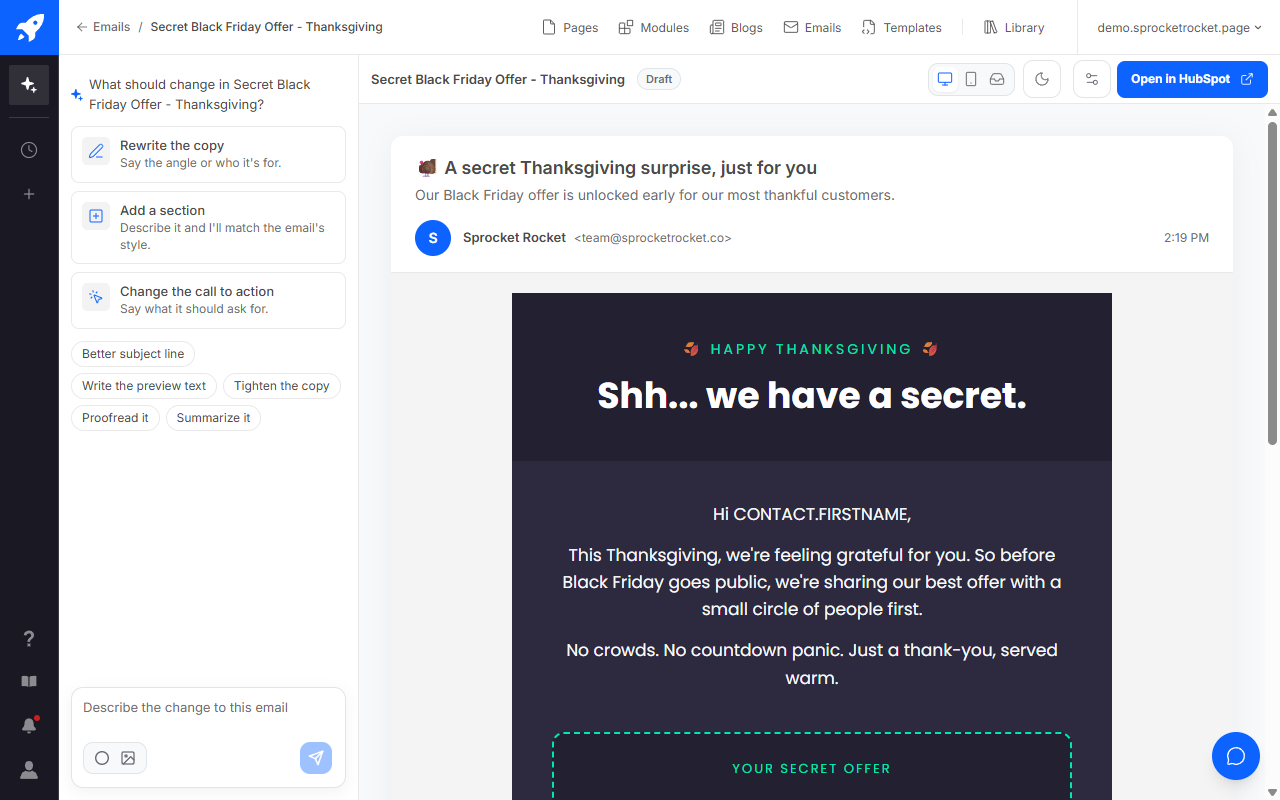
Preview as shows the email on Desktop or Phone, or in the Inbox the way it arrives, on a computer or a phone. Dark mode shows it in dark mode. The inbox view also checks your subject, preview text, and from name before anyone opens it.
Change an email
Tell the chat what you want. On a drag and drop email, Sprocket Rocket edits its text, sections, and blocks. On a coded email, it edits the HTML and HubL of the email's design.
- Drag and drop: changes are saved to HubSpot's draft of the email.
- Coded: the design is a file in the Design Manager, and you can edit it yourself in the HTML tab. Changes stay unpublished until you select Publish changes. Other emails can share a design, and publishing changes them too. The dialog says how many.
Discard draft changes, under More actions, puts the email back to its last published version. The menu only shows once the email has a published version or unpublished changes. Open in HubSpot opens it in HubSpot's editor, where you send it.
Email settings
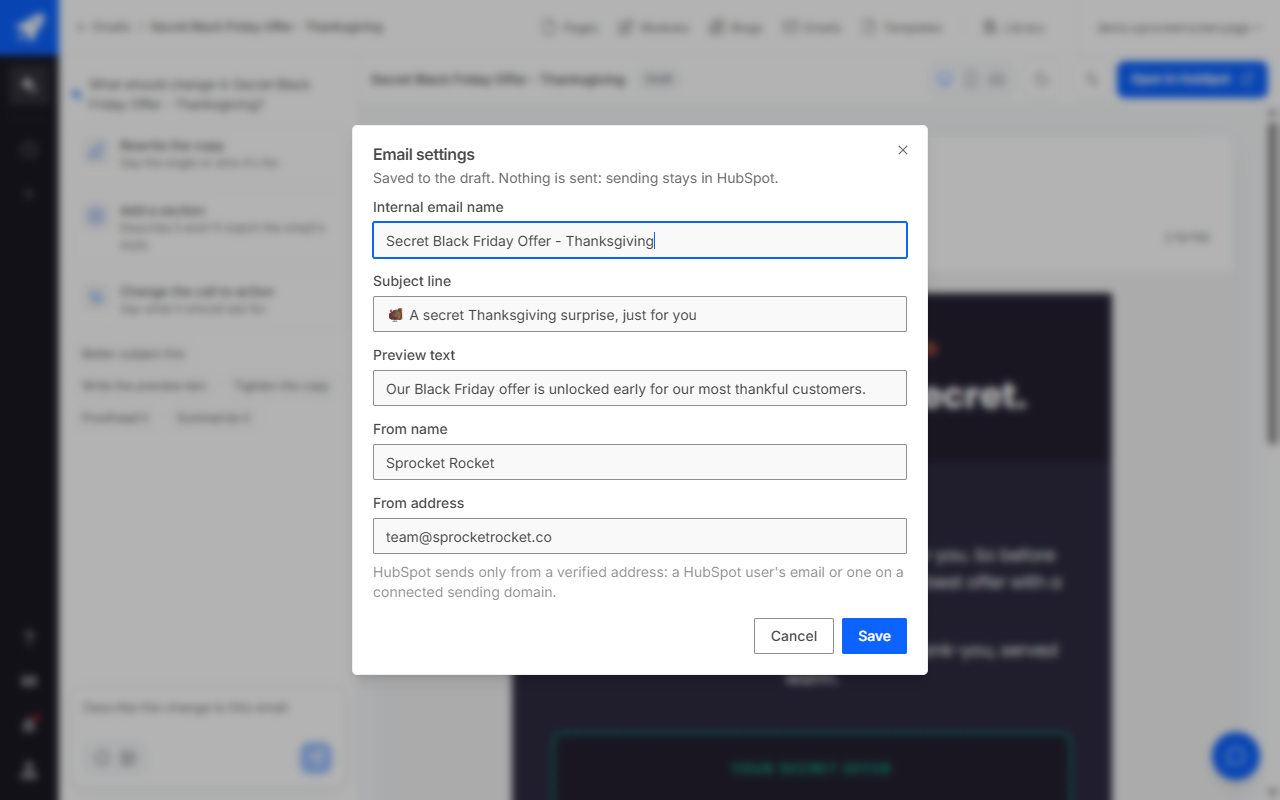
The settings menu in the toolbar has Refresh, Email settings, and Open preview in new tab. Email settings changes the email's:
- Internal email name
- Subject line
- Preview text, the line inboxes show after the subject
- From name and From address
Select Save. The settings go to the email's draft, and nothing is sent. HubSpot sends only from a verified address: a HubSpot user's email or one on a connected sending domain. You can also tell the chat to change the subject or preview text.
A coded email built on a HubSpot or Marketplace template can't change, because those files are locked.
Create an email
Select New email, or ask in the chat, and pick how it's built:
| Type | Good for | Trade-off |
|---|---|---|
| Coded | Full control over design and layout. Sprocket Rocket AI can change anything in it. | Not editable in HubSpot's drag and drop editor. |
| Drag and drop | Teammates can edit it in HubSpot's editor. Sprocket Rocket AI edits its blocks too. | Limited to HubSpot's blocks and layouts. |
The new email is a draft in HubSpot and opens on this screen. On a theme you can change, a coded email's design goes in that theme and can use its colors and fonts. On a Marketplace theme, it goes in the asset folder beside the theme and brings its own styles, because the theme's settings aren't available there.