

HubSpot permissions
Understand why Sprocket Rocket requests access to your HubSpot portal.
Sprocket Rocket needs permission to install theme files, read managed pages, create previews, and publish changes requested from the application.
HubSpot remains the system of record for published website content. Sprocket Rocket stores the installation state needed to manage packages and backups, along with page version history, saved layouts, and AI chats in Page Builder and Module Builder.
Required permissions
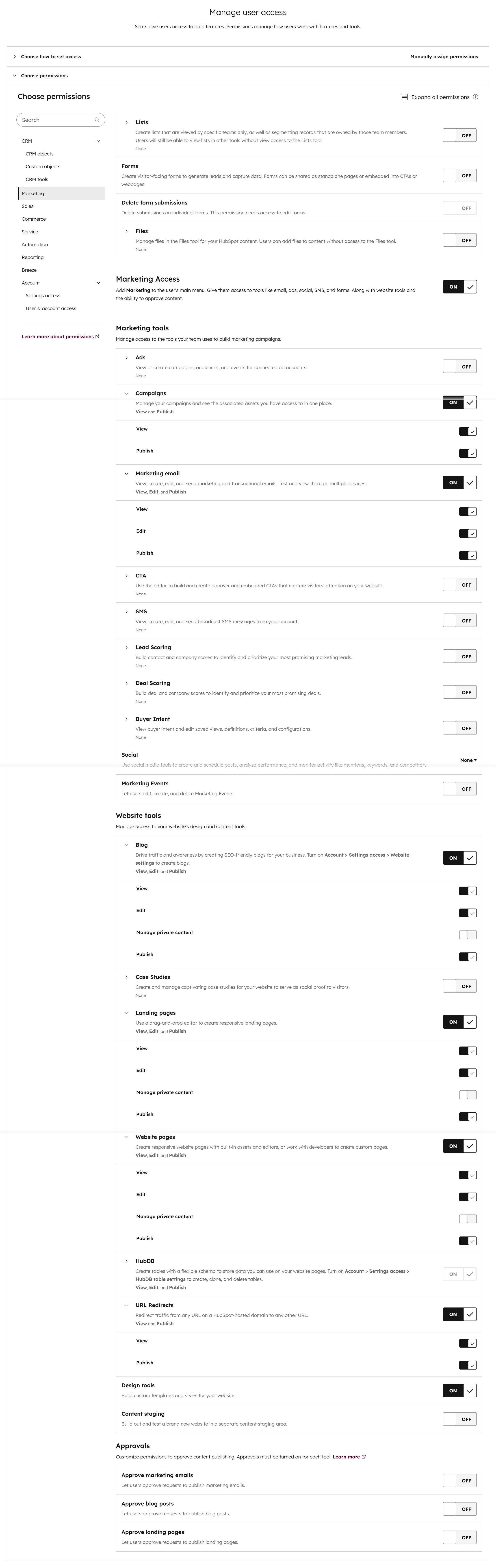
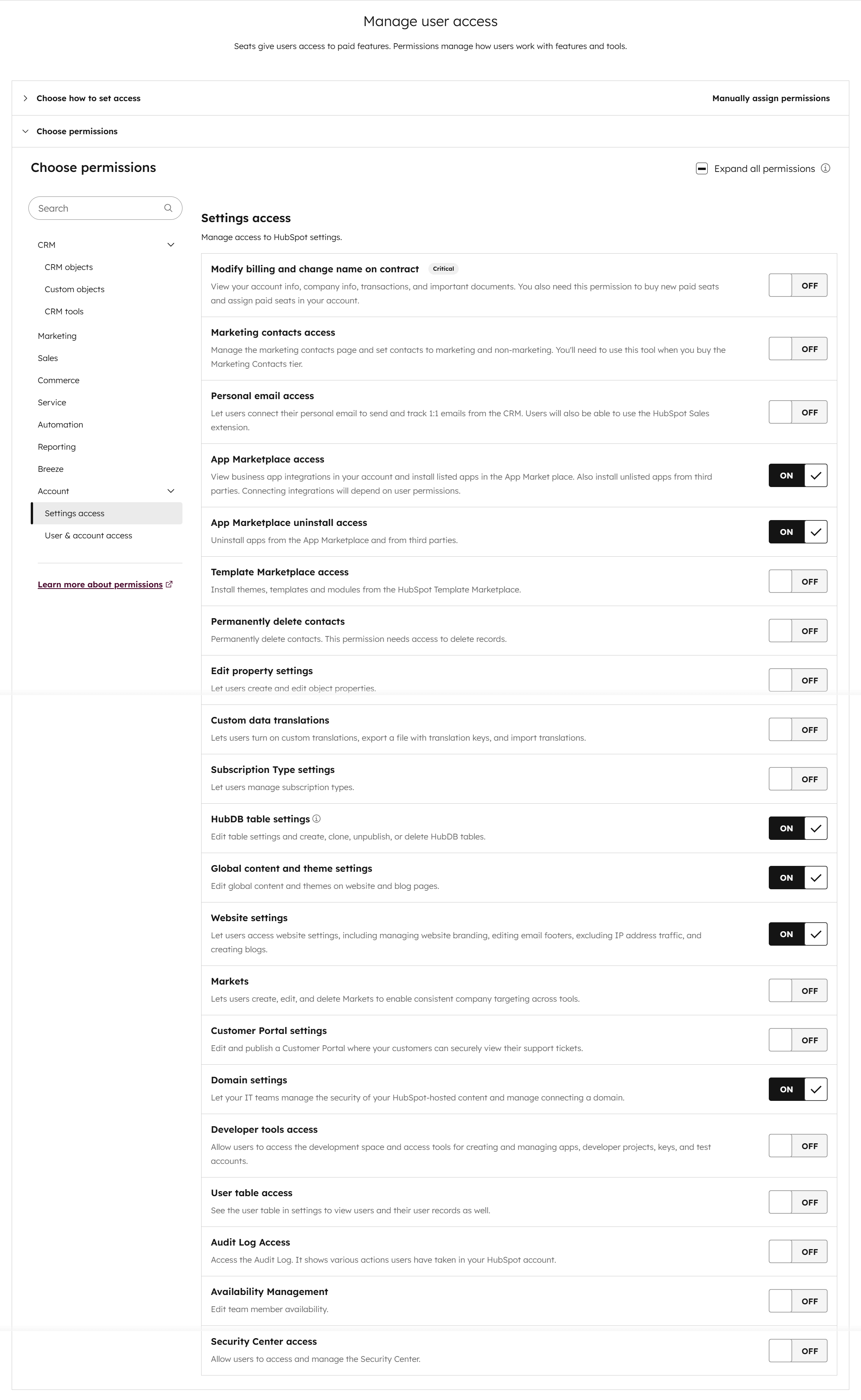
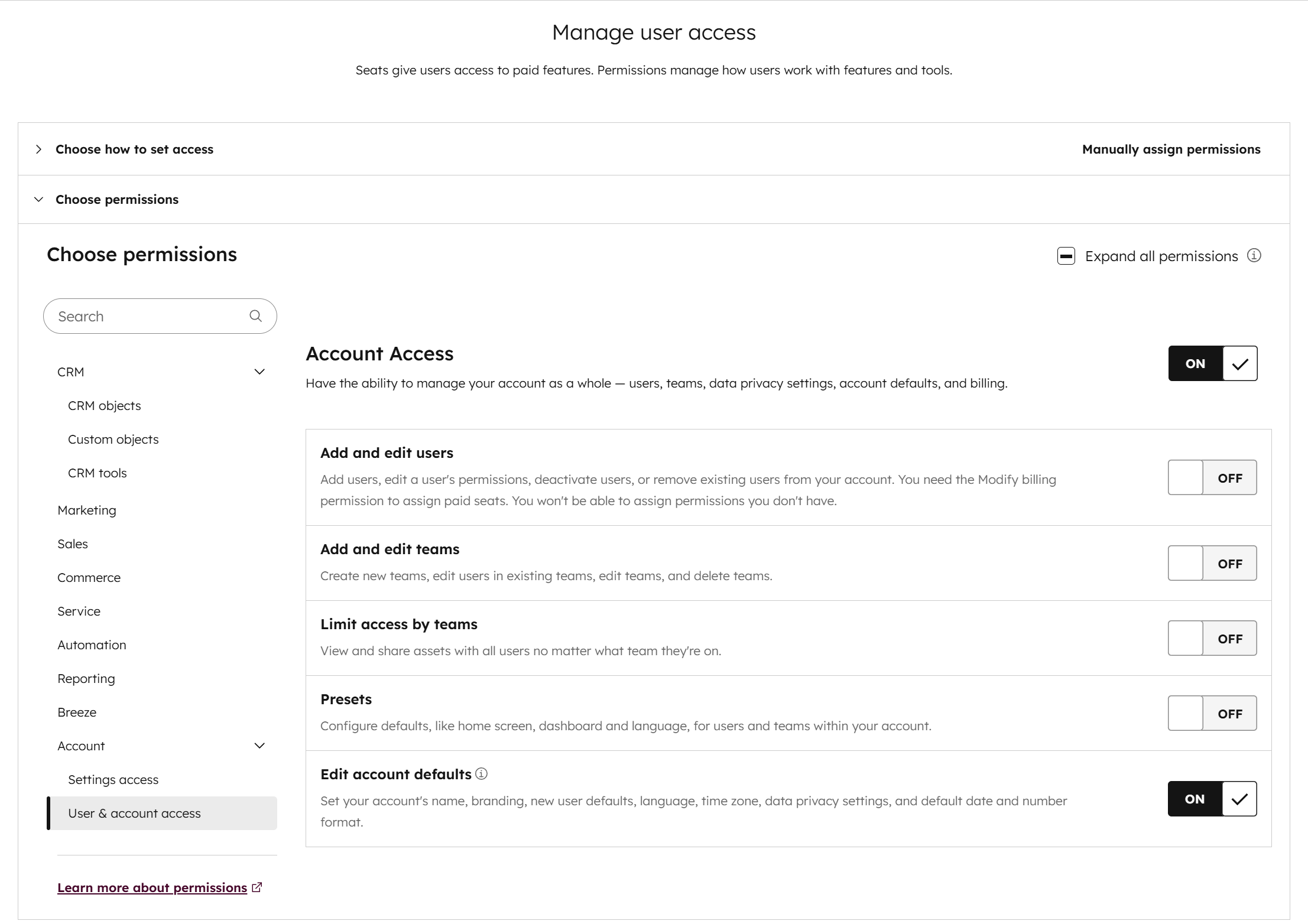
Before installing, check that your HubSpot user has the permissions below. Confirm the View, Edit, and Publish toggles under each item, not just the section itself.
Marketing
Account settings access
User and account access
Scopes
The app requests these OAuth scopes:
oauth, required for the OAuth connection itselfcontent, required for website pages, landing pages, templates, and modulesfiles.readandfiles.write, for the File Manager: images Sprocket Rocket AI finds or uploads, and chat attachments placed on a pagehubdb.tables.read,hubdb.tables.write,hubdb.rows.read,hubdb.rows.write, andhubdb.tables.publish, for the HubDB tools Sprocket Rocket AI uses on portals where HubDB is availablebusiness-intelligence, so Sprocket Rocket can read the portal's analytics
HubSpot lists the File Manager, HubDB and analytics scopes as optional because the same developer app serves other products. You can switch any of them off on HubSpot's authorize screen. Everything else keeps working, and the features that need a scope stay off until it's granted. Sprocket Rocket asks for the File Manager scopes once: a portal connected without them is asked to reconnect.
If authorization fails, confirm that your HubSpot user can install apps and edit website content in the selected account. Connect HubSpot covers the connection steps.
A permission stays off after reconnecting
A HubSpot Super Admin can switch an optional permission off for an app across the whole HubSpot account. When that happens, HubSpot's authorize screen shows the permission with a lock instead of a checkbox, and reconnecting doesn't grant it however many times you try. Sprocket Rocket notices this. Instead of asking you to reconnect again, it shows a Turn on File Manager in HubSpot (or Turn on HubDB in HubSpot) card with a How to turn it on link back to these steps.
To turn the permission back on, a Super Admin in the HubSpot account:
- Starts a reconnect from Sprocket Rocket, hovers over the lock next to the permission on HubSpot's authorize screen, and chooses Go to admin settings.
- Opens the Data permissions tab.
- Under Optional, switches on the permissions Sprocket Rocket needs: both files permissions for the File Manager, and the five hubdb permissions for HubDB.
- Returns to the authorize screen, refreshes it, and chooses Connect app.
Data permissions apply to everyone in the HubSpot account, so this is needed once per account, not once per user.