

Connect HubSpot
Add a HubSpot portal to your Sprocket Rocket organization.
Open your organization and select Add Portal, or Connect your first portal when the organization has none yet. Only organization owners and admins can connect a portal. HubSpot will ask you to choose an account. Use the search field when your HubSpot login can access several accounts, then select the correct portal and continue.
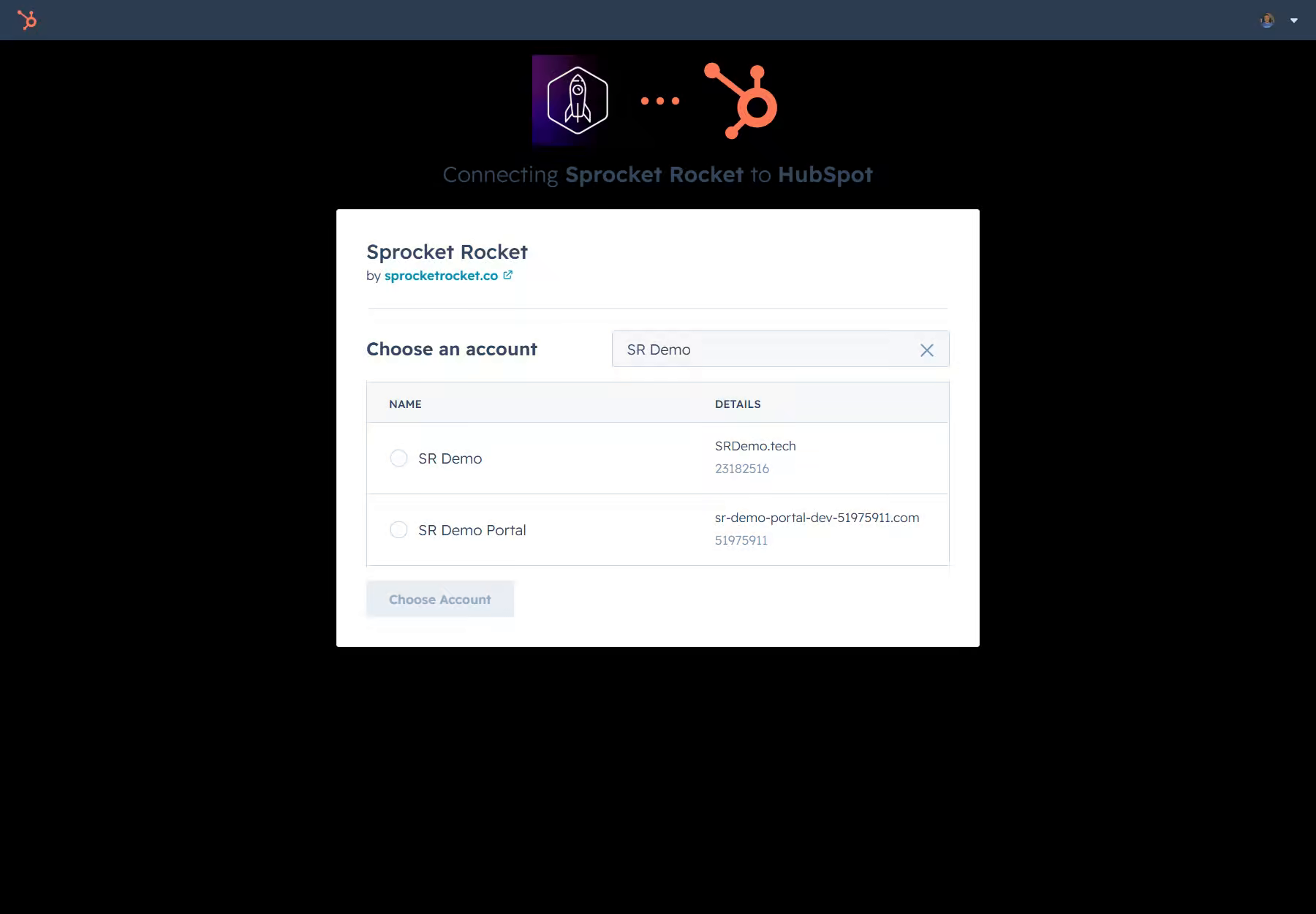
Review the account name, domain, and portal ID before approving access. Sprocket Rocket then asks HubSpot for the permissions needed to install and manage theme files.
Optional permissions
HubSpot's authorize screen marks these permissions as optional:
- File Manager (
files.readandfiles.write), so Sprocket Rocket AI can search the portal's images and put uploaded or attached images on a page - HubDB (the five
hubdbscopes), so Sprocket Rocket AI can read, edit, and publish HubDB tables - Analytics (
business-intelligence), so Sprocket Rocket can read the portal's analytics
Leave them on. Everything else works without them. A portal connected without the File Manager permission is asked to reconnect when someone opens it, and Sprocket Rocket asks for HubDB when it needs it. If a permission stays off however many times you reconnect, a HubSpot Super Admin has switched it off for your account. Follow A permission stays off after reconnecting.
After you connect
After authorization, HubSpot brings you back to the new portal's page in Sprocket Rocket. You can then create its first installation.
Already bought Core or Stack in the Marketplace? Open the connected portal and the app automatically detects the purchase and assigns the matching license when it is higher than the portal's current one. You do not need to repurchase it for that portal. The app installs a separate theme when you create an installation; it leaves the locked Marketplace theme and existing pages in place. Read Marketplace themes and the app before moving pages.
Read HubSpot permissions to see what the app can access. If the connection fails, use the checks in adding a portal.