

Pages
Find, open, and manage the HubSpot website and landing pages that use an installation.
Select Pages in the rail to see the HubSpot pages that use the current installation. Select a page to open it in Page Builder, where you can edit it by hand or with Sprocket Rocket AI.

Website Pages and Landing Pages
The list has two tabs. Website Pages belong to your site: they sit in its navigation and sitemap. Landing Pages stand alone, built for a campaign or an ad.
Create New Page starts a page of the type on the tab you're on. To change a page's type later, use the row menu below, or Page type in Page settings.
Find a page
- Search finds a page in the list.
- All domains narrows the list to one of the portal's domains.
Each row shows the page's name, when it was last updated, and its status: Draft, Published, Scheduled, Archived, or Unpublished changes when the draft differs from the live page. Working... means Sprocket Rocket is working on the page right now.
A page in an A/B test is marked A/B original or A/B variant. A running test's variant is listed right after its original. When a test ends, the losing variant is folded away, as it is in HubSpot. See A/B tests.
Row menu
Open a row's menu for:
- View: open the live page in a new tab.
- Edit HubSpot: open the page in HubSpot's editor.
- Copy live URL: copy the page's public address.
- Move to landing pages or Move to website pages: change the page type. The page keeps its URL and content.
- Delete page: remove the page from HubSpot. Only organization owners and admins see this option, and it cannot be undone.
Website page templates
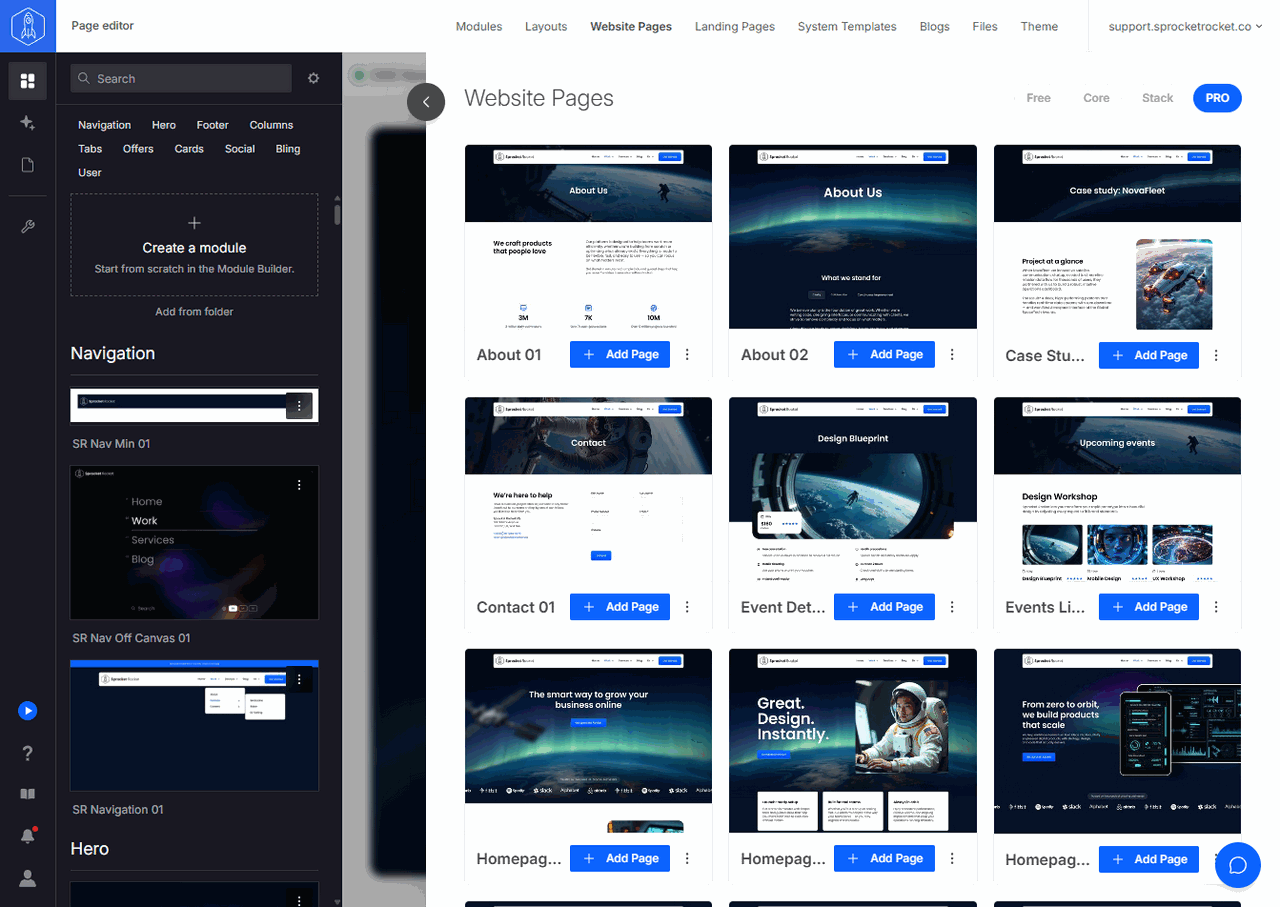
Website Pages in the installation's top navigation opens a drawer of website page templates, not the page list. Use the Free, Core, Stack, and PRO filters to see the templates for each portal license.
- Install adds the template to the portal.
- Add Page on an installed template creates a new page from it and opens the page in Page Builder.
- Change log in an installed template's menu lists its versions so you can move it to another one.
- A template the portal's license doesn't include shows Requires and the license it needs.
Landing page templates have their own Landing Pages drawer.