

Sprocket Rocket AppManaging portals
Custom installations
Create an installation with a custom name, path, domain, module selection, or asset mode.
Open the portal, select Add theme, and keep Sprocket Rocket chosen. Change the defaults when they do not fit the portal:
- Theme: choose the theme when more than one is available.
- Install name: the name shown in the app. The default is Sprocket Rocket.
- Base path: the HubSpot folder for the installation. The default is
sr. If the path already holds a Sprocket Rocket installation that is not managed yet, the dialog offers Adopt install instead. If it holds another theme, the dialog offers to adopt it as a custom theme. If it holds files that aren't a theme, the install is blocked and you need a different path. - Domain: the domain that pages created from this installation publish to by default.
- Install all modules and templates: selected by default. The core files are always installed, and the portal's eligible modules and templates install in the background. Clear it to install only the core files.
- Install as a shared asset folder: installs modules and their supporting files only, not a full theme, so the folder cannot be used to build pages. See Shared asset folder.
Select Start install when the dialog shows the install is ready.
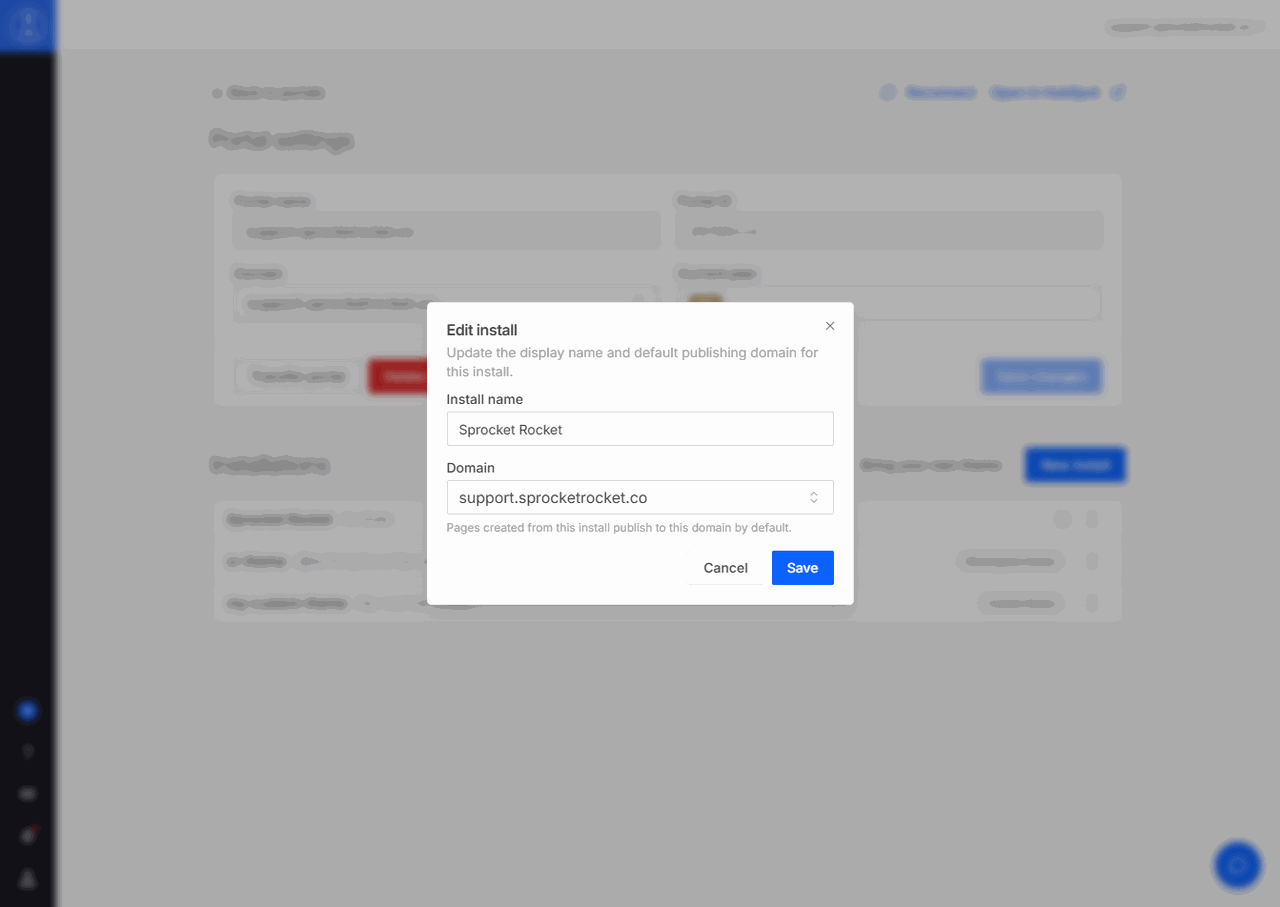
After the installation is created, Edit install in its Actions menu changes only the install name and domain. The base path cannot be changed in the app.
Record custom paths before moving or renaming managed files in HubSpot. Sprocket Rocket uses the installation record to find packages during updates and recovery.