

Saved layouts
Save a page arrangement and reuse it on another page.
A layout stores a reusable arrangement of modules, including their content. Save a layout after the structure is ready and before replacing page-specific copy.
To save one, select Save Layout in the Page Builder toolbar, enter a Layout name, and select Save layout. Some modules can't be saved in a layout, such as modules from another theme. The app tells you how many it left out. A layout is available to your organization's installations of the same theme. A layout that includes the portal's own custom modules stays with the installation it was saved from.
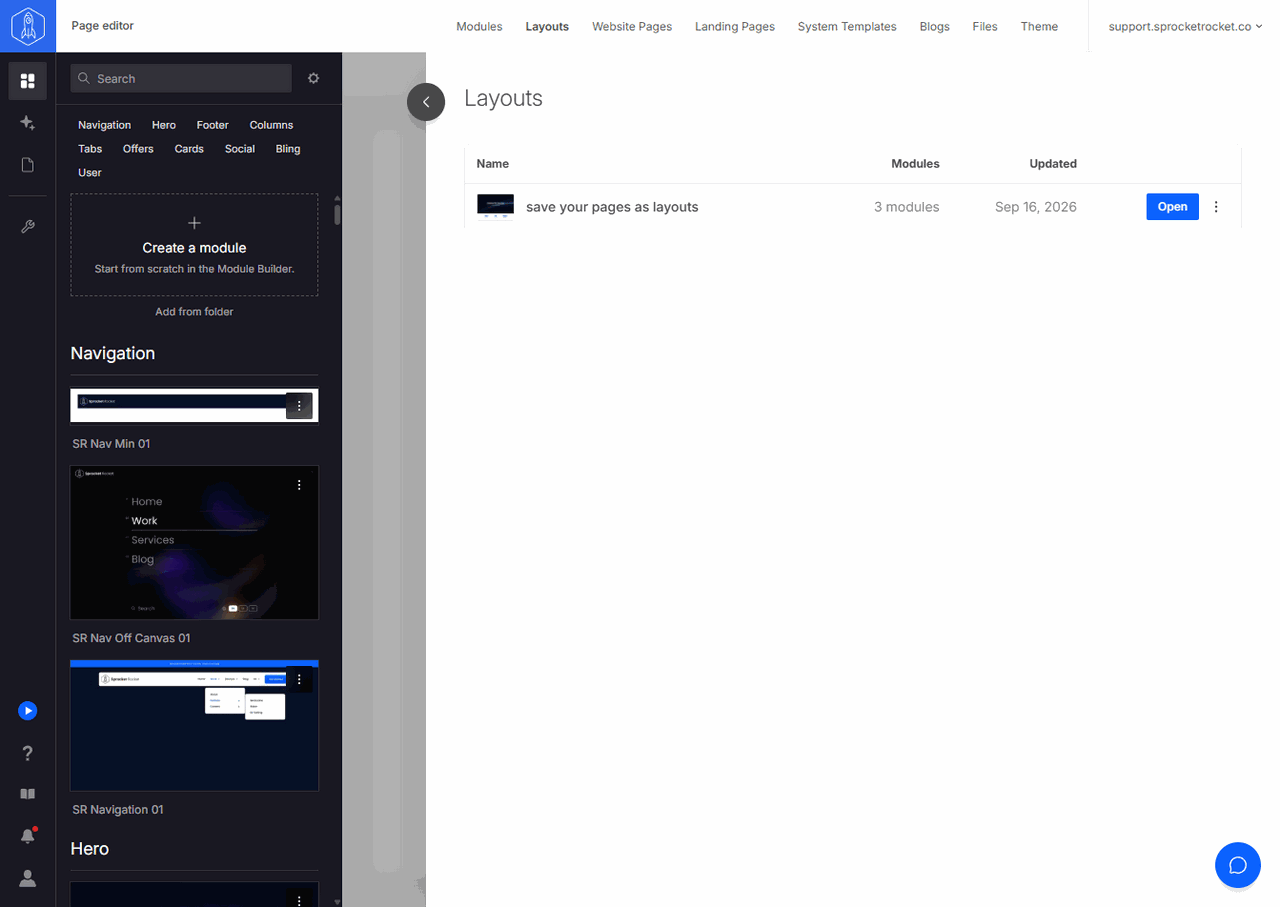
Open Layouts in the installation's top navigation to browse saved layouts. Select a layout, or its Open button, to create a new website page from it. The page opens in Page Builder. Modules that aren't installed yet start installing; add them from Add modules once they finish. Locked modules are skipped. Review the new page, because another installation may use different theme settings.
Each layout's menu has Rename, Duplicate, and Delete. Deleting a layout removes it for everyone in your organization. Pages already created from it are not affected.
Layouts reuse page structure. They are different from HubSpot page templates, which define the page shell and supported content areas. See page templates for that workflow.