

Build and change modules
Sprocket Rocket changes modules right in your chat, or builds them in the background from a card you confirm.
Most changes are module field edits, and Sprocket Rocket makes those straight away. When a change needs the module's code, such as a badge field a module lacks, a different card layout, or a second card in a one-card hero, it works one of two ways.
- In your chat: a change to one of the portal's own modules happens right there. The module's code opens beside the page or in the module view, and Sprocket Rocket edits it while you watch. It stays a draft until you publish it. Ask for a new module from a chat with no page and it's built the same way.
- In the background, from a card: a new module for a page, a change you ask to run in the background, a stock module, a whole page or rebuild that needs several modules, and all module work on a Marketplace theme. Nothing happens until you confirm the card. Then it builds the module in its own subthread, publishes it to the portal, and puts it on the page while you keep working.
Sprocket Rocket's catalog includes the portal's own custom modules as well as the Sprocket Rocket modules, so you can name one of yours and it will use it or change it.
The three cards

| Card | When Sprocket Rocket proposes it | Button |
|---|---|---|
| New module: followed by the name | The page needs a module that doesn't exist yet. | Build it |
| Copy for this page: and the name | You want a change to a stock Sprocket Rocket module. | Make the copy |
| Change and the module's name | You asked for a background change to one of the portal's own modules. | Update module |
- Stock modules are never edited. A change to one makes a copy, and the copy replaces the stock module on this page only. Other pages keep the stock module.
- Changing one of the portal's own modules updates it everywhere it's used, live pages included. The card says so before you confirm.
- A new module goes where the card says: below a module Sprocket Rocket picked, in place of a module (keeping its content), or at the end of the page.
When a section rebuilds part of another website, the card carries that section's code and design, so Sprocket Rocket matches it closely. See Rebuild or match a site.
Edit details
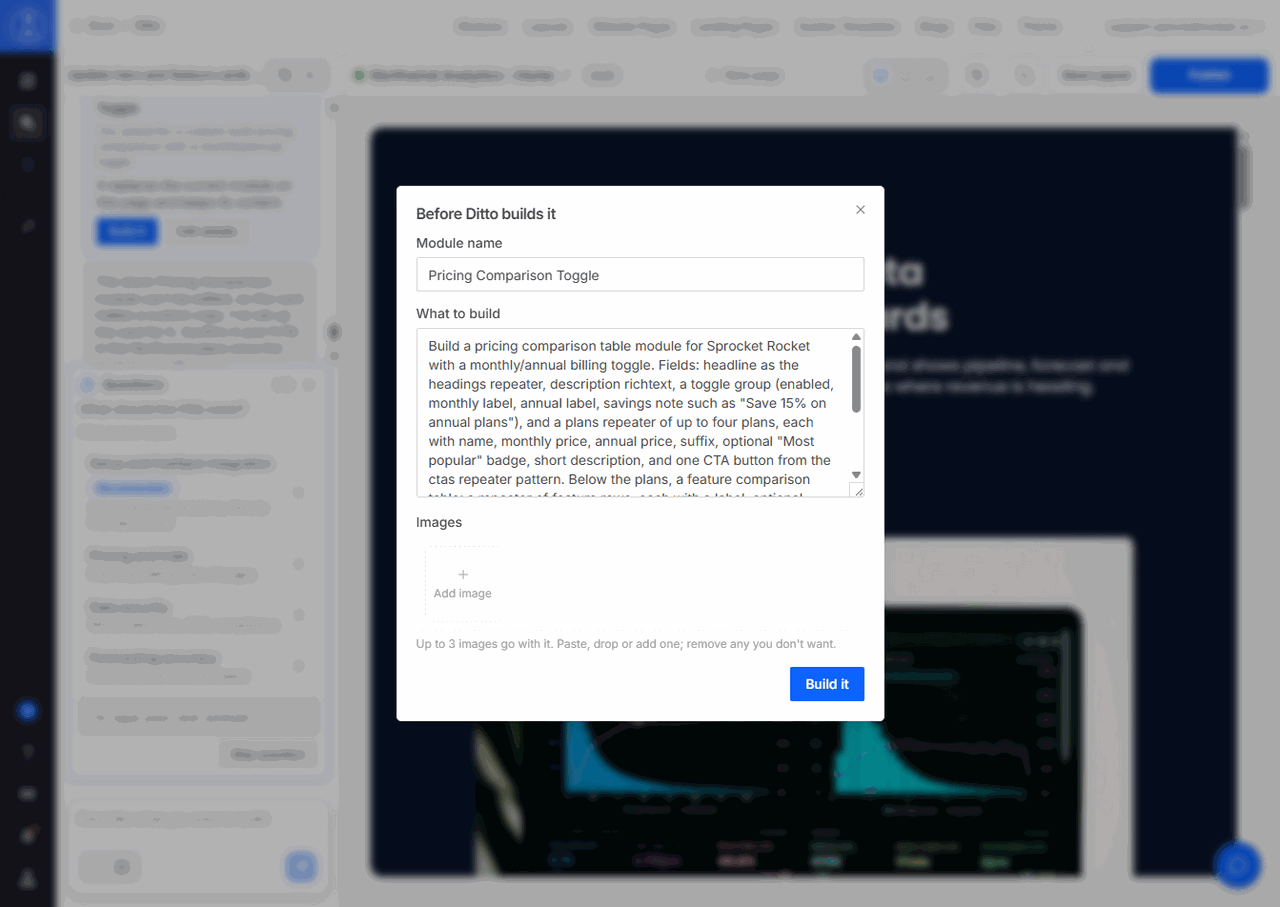
Select Edit details before you confirm to change what Sprocket Rocket builds from:
- Module name. It can't contain slashes or two dots in a row.
- What to build or What to change: the brief Sprocket Rocket wrote, in plain words.
- Images: up to 3 images that go with the brief. Paste, drop, or add one, and remove any you don't want.
Statuses
The card shows where the work stands:
| Status | What it means |
|---|---|
| Queued, or Waiting | Starting in a moment, or waiting for an earlier change to the same module. Waiting says what it waits for. |
| Building | Sprocket Rocket is writing the module. A change to an existing module shows Making the change. |
| Checking the preview and publishing | Sprocket Rocket checks that the module renders, then publishes it to the portal. |
| Adding it to the page | The new module is being placed on the page's draft. |
| Sprocket Rocket has a question | It needs your answer before it can go on. Select Reply and answer on the card. |
| Needs attention | The work stopped. The card says why. |
| Didn't finish | The work failed. Select Try again. |
| Cancelled | Someone cancelled the change. |
| Done | The module is published and on the page. |
Changes to the same module run in the order you confirmed them. If one fails, the changes behind it wait, and the card offers Run anyway or Cancel. When the organization's AI budget runs out, the change waits until you select Try again. You can Cancel a change that hasn't started or is waiting for your answer.
Select Open on the card to follow the work in its subthread, read what Sprocket Rocket did, and add a note while it builds. The subthread is also in Chat history, under the chat that started it. Open code opens the module's code so you can look at it or fix it yourself. See Module view and code.
Only the person who confirmed a card, or an organization owner or admin, can reply to it, try it again, or run it anyway. The module is built and published as that person.
While it works
You don't have to wait. Keep chatting or editing the page. A line above the composer shows which modules Sprocket Rocket is building.
When a change needs you, or when it's done, you get an in-app notification, such as "Sprocket Rocket has a question" or "is on your page". If the card has scrolled far up the chat, a line also appears at the bottom of the chat when a change asks a question or stops.
A new module lands on the page's draft in the background, even if you've moved to another screen. A line in the chat, such as Placed Pricing Table on Home, says when it's there, and Open goes to the page. Publish the page to make it live. If the spot the card named is gone by then, the module goes at the end of the draft and the card says so.
Sprocket Rocket finishes the page
A change you ask for on a page is usually meant to show on that page. When the module is ready, Sprocket Rocket picks up the rest of the work by itself: it turns on the new option and fills in the new fields with your content. You don't need to ask again. The follow-up waits in the chat's message queue, where you can edit or remove it while Sprocket Rocket is busy.
Themes
Sprocket Rocket AI's page work, including the portal's own custom modules, works on Sprocket Rocket, custom, Marketplace, and child themes. Module code depends on the theme:
- Child theme: Sprocket Rocket changes the files stored in the child theme and builds new modules there. A module inherited from the parent can't change, so it builds this site's own version instead.
- Marketplace theme: HubSpot locks the theme's files, so all module work is a card that runs in the asset folder beside the theme. Changing one of the theme's modules builds this site's own version from its fields and what it renders, and swaps it in on that page only. It's a rebuild rather than a copy, so review it before you publish. Other pages keep the original.