

Restore modules and files
Recover one module or file from a backup, or deliberately reinstall a published version.
Use the Change log action on an installed module or managed file to see its available recovery options. Entries marked Backup contain captured installation files. Entries marked Catalog contain a published Sprocket Rocket release. Other members can view these entries, but only organization owners and admins can use their actions.
Choose the source
| Source or action | What it does |
|---|---|
| Backup → Restore | Restores captured files, including customizations present when that backup was created. |
| Catalog → Roll back | Installs an available older published release. It does not recover your custom code. |
| Catalog → Reinstall | Replaces the selected module or file with the published release offered for reinstall. |
| Catalog → Update | Installs the newer published release shown in the list. |
An old version number in a change log does not guarantee that deployable release files are available. Only the recovery options offered for that module or file can be selected. A backup can recover a legacy version even when that version is absent from the catalog.
Restore one module
- Open the installation's Modules section.
- Find the installed module and open its Actions menu.
- Select Change log to open Module versions.
- Find the Backup entry with the correct date and label.
- Select Restore, wait for the job to finish, and check pages that use the module.
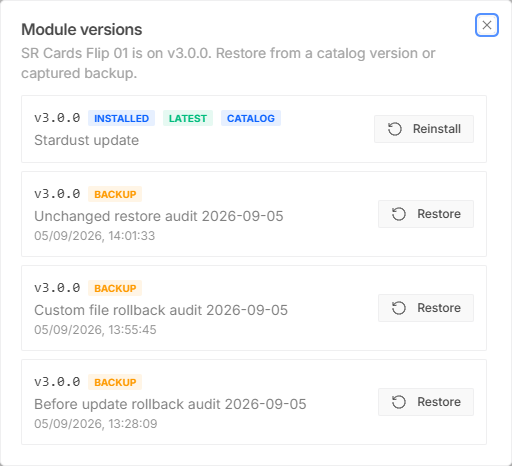
Selecting Restore on a backup entry queues the module restore immediately. Check the entry before clicking; this flow does not use the full-installation confirmation dialog.
A module restore recovers that module's captured files together, including its field definitions and code. It does not restore the installation's core files or unrelated modules. If the problem also involves core macros, CSS, or templates, consider restoring the installation from a consistent backup.
Choose the correct local or global module copy. They can have different code and version histories. Changes to a shared or global module can affect multiple pages.
Restore one file
- Open the installation's Files section.
- Find the managed file and open its Actions menu.
- Select Change log to open File versions.
- Choose the required Backup entry and select Restore.
- Wait for completion and test the affected pages.
The single-file Restore action also queues the job immediately. It replaces only that captured file; it does not roll back the whole package's displayed version. Prefer a complete module restore when its HTML and field definitions need to stay together.
Use a catalog version deliberately
Select a Catalog entry when you want the published release rather than your captured customizations. Back up current work before replacing it. A rollback or reinstall can overwrite modifications to the selected files.
A move across a major module version asks you to type a confirmation phrase and the HubSpot portal ID. A move to a newer version also installs the core files it needs first, unless those files were edited in HubSpot. The confirmation acknowledges the risk; it is not a compatibility check of every page.
Catalog module rollback leaves shared dependency libraries in place. It is not the same as restoring every file captured in a full installation backup. See Legacy updates and recovery for a cautious update sequence.