

Restore an installation
Recover captured files across an installation and understand what a full restore changes.
Use an installation restore when a change affected several modules, templates, or core files and you want to recover them from the same backup. If only one module or file needs recovery, use the smaller restore options.
Before you restore
Check the portal, installation, backup name, creation date, and file count. Choose a backup from before the unwanted change. The restore writes to that installation's existing HubSpot paths; it does not create a separate test installation.
If the current installation contains newer work you may want to keep, create another backup first and wait for it to finish. Coordinate with anyone editing those files in HubSpot.
Start the restore
- Open the installation, then select Backups from the user menu.
- Find the backup you want and select Restore on that row. Only organization owners and admins see Restore.
- Read Restore this backup? and check the backup name in the confirmation.
- Select Restore to start, or Cancel if it is not the correct recovery point.
- Wait for the restore to complete. The dialog can close while the background job continues; a queued message is not a completion message.
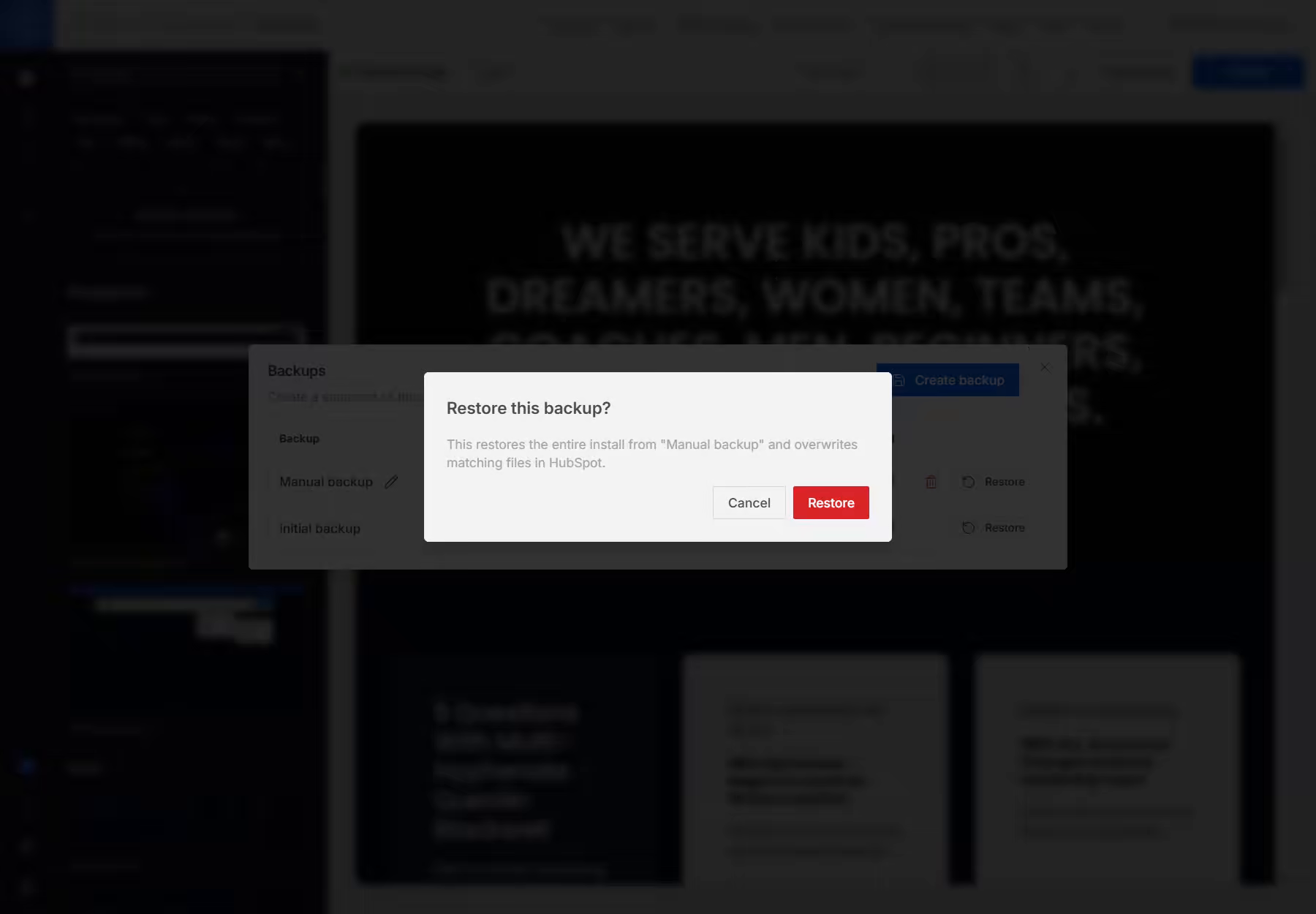
You can also start from the portal page: in Installations, open the installation's Actions menu and select Restore backup.
What changes
| File state | Restore behavior |
|---|---|
| The current file already matches the backup | It is left alone, avoiding an unnecessary upload. |
| A file captured in the backup has since changed | The captured version replaces it. Later edits to that file are overwritten. |
| A captured file is missing from HubSpot | Sprocket Rocket attempts to recreate it at its original path. |
| A file was added after the backup | It remains present. Restore does not delete extra files. |
| A module or package has a captured version | Its version information is restored for the files covered by the full restore. |
For example, if you back up an installation, edit its navigation, and then add another module, restoring that backup recovers the captured navigation files. It does not automatically remove the new module.
“Restore the installation” means restoring the files saved in that backup. It is not a complete reset of the portal, and an early initial backup may cover fewer files than a later manual backup.
Check the result
After the job completes:
- Open representative pages that use the affected modules and templates.
- Check desktop and mobile layouts, navigation, forms, buttons, and any custom behavior.
- Confirm that the expected module versions appear in Sprocket Rocket.
- Review any files marked Customized or needing review before applying another update.
Restored custom files are not automatically treated as safe to overwrite. A file can need review even when its displayed version matches a catalog version. This protects the restored work.
Page field values and layouts edited in HubSpot are not rolled back by this operation. If those changed too, recovering the old code alone may not reproduce the old page. See what backups cover.
If the restore fails
Some files may already have been restored before another file fails. A failed job does not automatically undo those writes. Wait until it stops, check the error, resolve the cause, and retry the same recovery point. Files that already match it are skipped.
If the error persists, contact support with the portal ID, installation name, selected backup, error message, and affected page URLs. Keep the backup available while the issue is investigated.