

Create and manage backups
Create a manual backup, confirm it is ready, and organize your recovery points.
Create a fresh backup before a major module upgrade, a core-file update, or replacing customized code. Also create one after a successful change when you want to keep that working state as a recovery point.
Create a backup
- Open the organization, HubSpot portal, and installation you want to protect.
- Open the user menu using the profile icon and select Backups.
- Select Create backup. The dialog closes and the backup is queued.
- Wait for the backup to finish. Backup queued and Creating backup mean it is still in progress.
- Reopen Backups and confirm that the new entry has the expected creation time and a file count before starting your update.
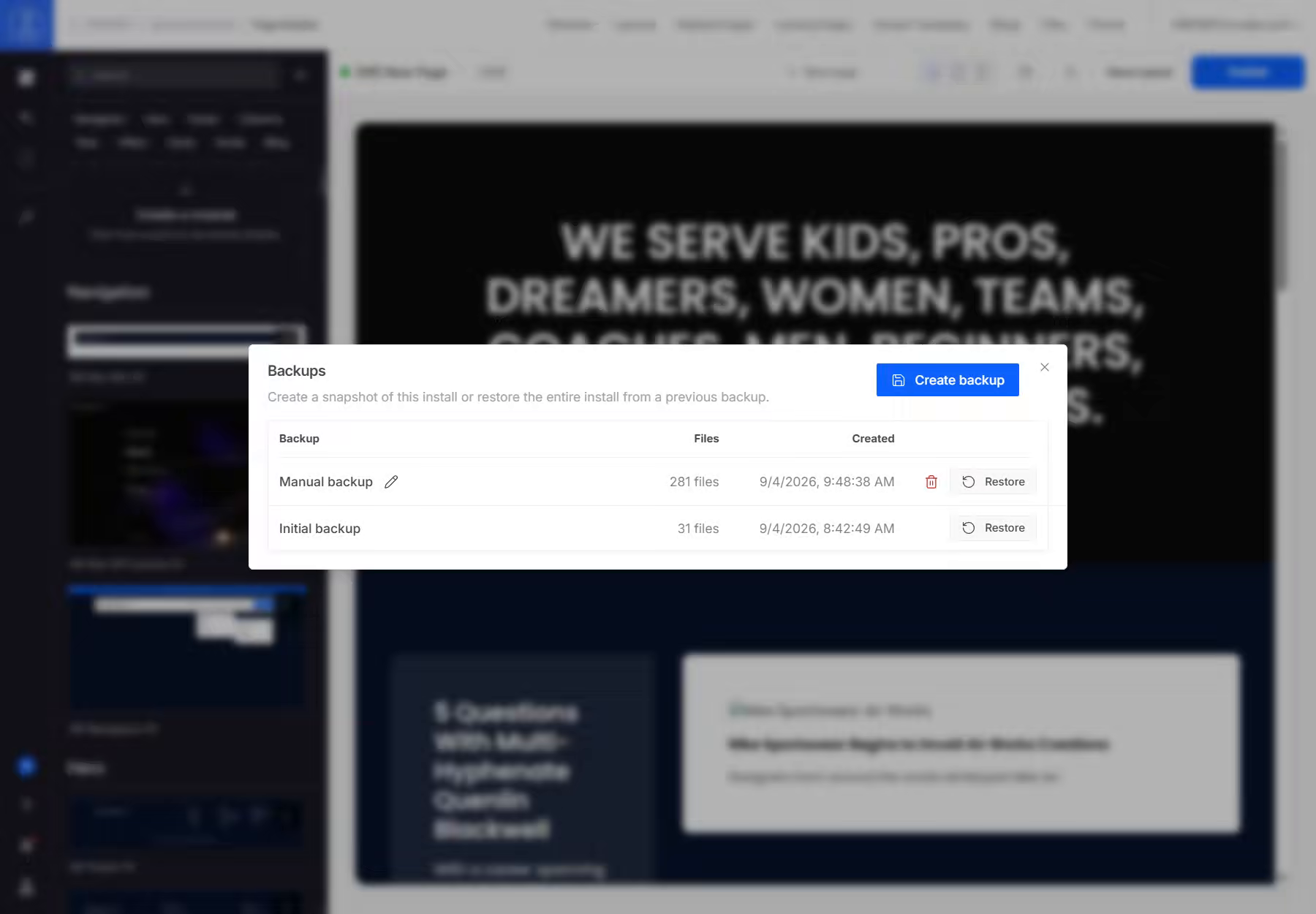
You can also start a backup from the portal page. In Installations, open the installation's Actions menu, select Create backup, and confirm. Organization owners and admins also see Restore backup there, which opens the list of recovery points.
While the backup runs
Sprocket Rocket scans the installation and reuses saved copies of unchanged files. It captures changed files so the new backup reflects the current installation, rather than simply copying the previous backup.
The work continues in the background if you close the dialog. Avoid editing the installation in HubSpot or running another change while it is being captured: files are scanned over time, rather than frozen together at one instant. Some actions remain unavailable while a job is running.
There is no fixed completion time. The file count, amount of changed content, and HubSpot's response time all affect it. A queued message confirms that the job was requested, not that a usable backup has finished.
If the job fails, resolve the connection or permission problem and create the backup again before making the planned change. See Recovery and troubleshooting.
Name a manual backup
- Reopen Backups after capture finishes.
- Select the pencil icon beside the manual backup's name.
- Enter a name that explains the state you want to preserve, such as Before header redesign or Approved site after September update.
- Select Save.
Renaming changes the label only. It does not refresh the saved files or change the backup's creation date. Create another backup to capture newer work. The initial backup does not have a rename action.
Delete a backup
An organization owner or admin can select the trash icon beside a removable backup and confirm Delete. This removes that recovery point from the history; it does not delete or change the live files in HubSpot. The initial backup does not show a delete action in the Backups dialog.
Keep the backup you may need until you have checked the update on affected pages. There is no undo action for deleting a backup from this history.
Access requirements
You need access to the organization and installation to create a backup or rename a manual backup. Restoring and deleting backups require organization management access, normally an owner or admin role. If you can view the list but cannot restore, ask an organization owner or admin to perform the restore.
The installation must be ready for backups and connected to HubSpot. An installation still being adopted, a failed connection, or an active job can prevent a new backup from starting. Installations of a HubSpot Marketplace theme do not support backups.