

Copy modules
Copy one of the portal's own modules into another installation, on the same portal or another portal you can reach.
A portal can hold more than one installation: two themes, or a theme and a shared asset folder. Copying puts one of the portal's own modules into another installation as a new module that installation owns. The installation can be on the same portal or on another portal, in this organization or another organization you belong to.
Copy a module
- Page Builder: in the module palette, open the menu on one of your modules under User and select Copy to another installation….
- Modules: open one of your modules in the top bar's Modules, then select Copy to installation under More actions. Only the published module is copied, so publish your changes first.
- Sprocket Rocket AI: in Page Builder, tell Sprocket Rocket "Copy this module to the campaign theme." It shows a Copy a module card, and nothing is copied until you select Copy module. Sprocket Rocket copies into installations of the page's organization only. For another organization, use Copy to another installation….
In the dialog, pick a Portal first, then the installations on it you want the copy in. This portal is selected to start, and the list holds every portal you can copy into, grouped by organization when you belong to more than one. Name the copy, then select Review copy to see what each installation gets before anything is written. The copy runs in the background, so you can close the dialog. When it lands, the module is in that installation's own modules, ready to place on its pages.
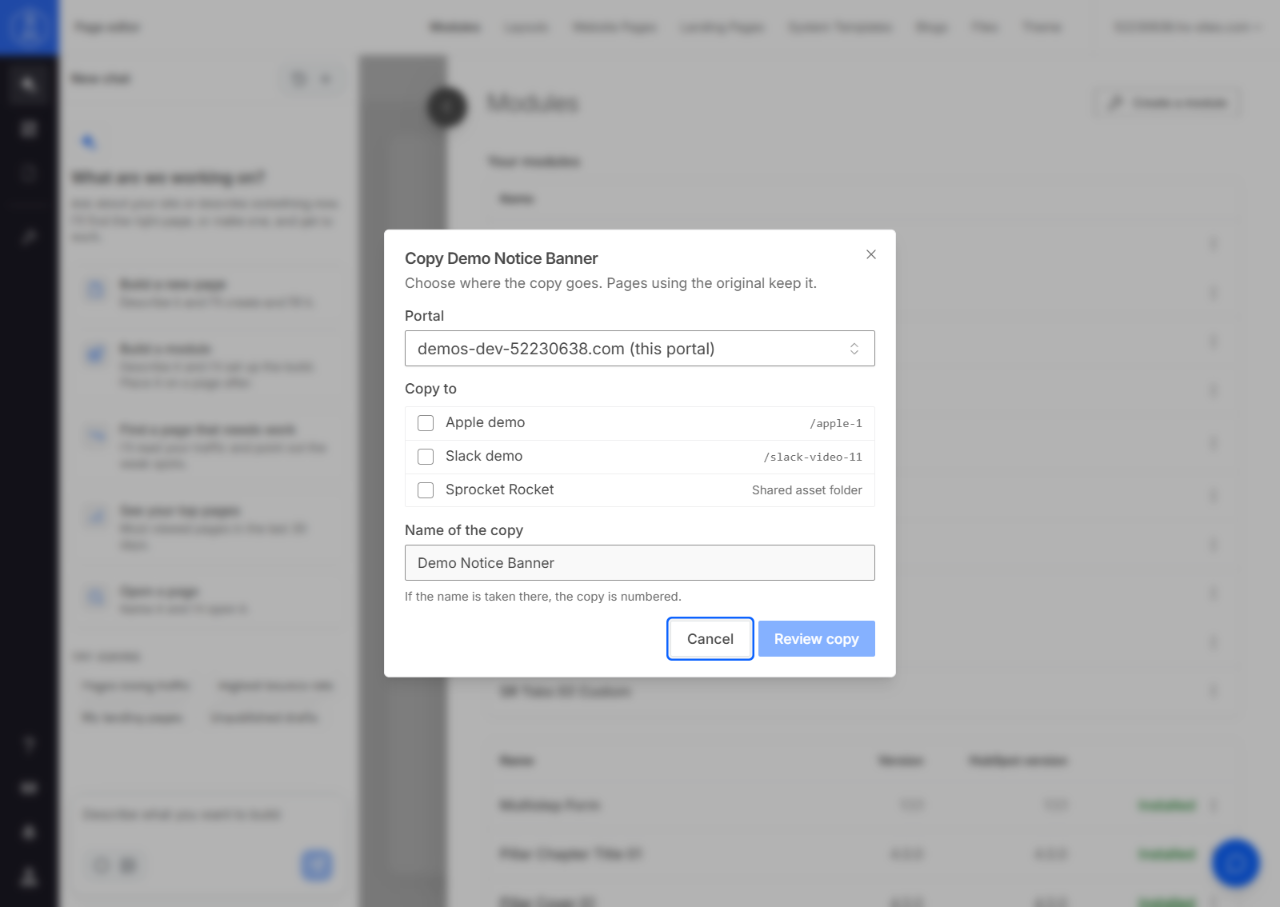
Which installations you can copy into
- You are a member of the installation's organization, and the installation's portal is one you can access there.
- The portal is connected. One that needs reconnecting shows Reconnect this portal first.
- The installation is a Sprocket Rocket theme, a custom theme, a child theme or a shared asset folder. A Marketplace theme cannot take copies.
What a copy does
- It is a new module with its own name. Pages that use the original keep it, and no page changes.
- When the name is taken in that installation, the copy is numbered, such as Hero 2. Names of the Sprocket Rocket modules that installation's theme offers count as taken even when they are not installed, so a later install never collides with your copy.
- Core files are never copied. The copy uses that installation's own CSS, JavaScript and macros. When one the module needs is missing there, the review names it: update that installation's core files, then copy again. When the installation has its own version of a shared file, the copy uses that version.
- On the same portal, a file or module the copy points at that the other installation does not have stays linked to the original installation, so it keeps working. An image the other installation lacks will not show until you add it.
Copying to another portal
- A file or module the copy needs must already be on the other portal. When one is missing, the review names it and the copy waits: update that installation's core files, or copy the other module there first.
- A file the module loads from outside its theme, such as
/Shared/css/site.css, must be at the same path on the other portal. When it is not, the review names it: add it there in Design Manager, then copy again. - Forms, CTAs, HubDB tables, menus and images belong to a portal. When the module's defaults or template point at the original portal's, the review says so. The copy still works, but those keep pointing at the original portal: pick new ones on the other portal after copying.
What cannot be copied
- Stock Sprocket Rocket modules. Install them in the other installation from its Library instead, so they keep getting updates. The review offers Install in that installation when its theme has the module.
- Modules of a Marketplace theme. They are read-only.
When a copy fails
The dialog and the card say why. The most common reason is HubSpot's file limit: a portal holds at most 10,000 Design Manager files. Delete files you no longer use in Design Manager, then copy again. A copy that stopped partway says how many files it wrote; copying again makes a new, numbered copy and never writes over a module it did not create.