

Billing, usage, and credits
Manage your subscription, AI usage, licenses, and prepaid module credits.
Billing belongs to the organization. Organization owners and admins open it from Organization settings, on the Billing tab. The top of the page shows AI usage remaining, Available licenses, and Credits.
For prices, and how portal licenses differ from the Sprocket Rocket AI subscription, read Pricing.
| Area | What it controls |
|---|---|
| Subscription | The organization's Sprocket Rocket AI subscription and included AI usage |
| Usage | AI consumption for the organization and its members |
| Licenses | Which connected portals can use Core, Stack, or PRO packages |
| Figma | The Figma Design System file, shown when the organization has a Stack or PRO portal or license |
| Credits | Prepaid unlocks for eligible modules on a portal |
Credit activity records purchases, grants, and module unlocks so the displayed balance can be reconciled.
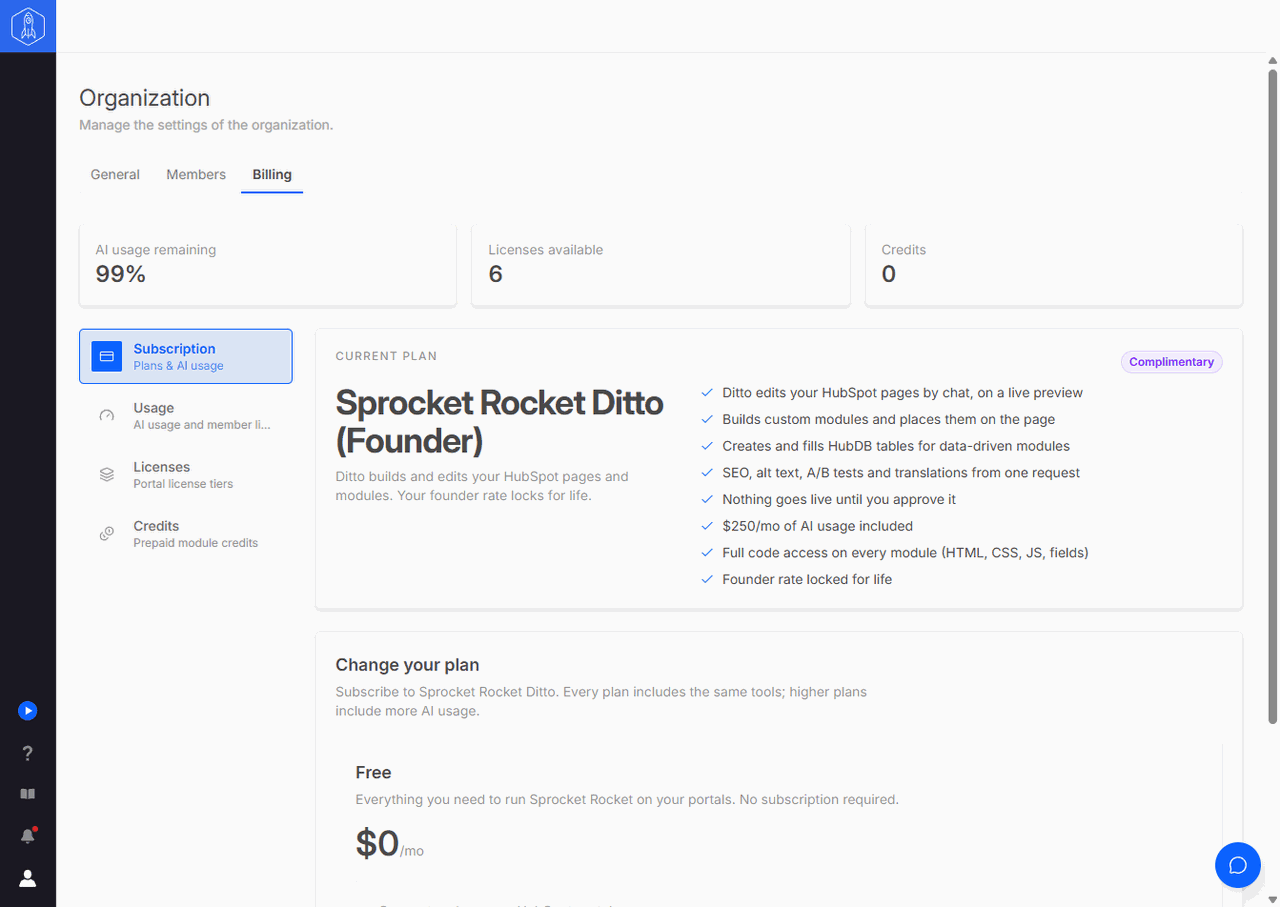
Subscription and usage
Subscription shows the organization's Current plan and, under Change your plan, the plans you can switch to. Owners and admins switch plans here. A larger plan starts right away: the card on file is charged the prorated difference, and this month's AI budget grows for the days that are left. A smaller plan starts at the end of the billing period, and the current plan shows when. Select Keep current plan to cancel a waiting switch. Switching from monthly to yearly billing starts right away; yearly to monthly waits for the year to end. When the organization pays for Sprocket Rocket AI, the owner can select Manage billing to open the billing portal for cards and invoices.
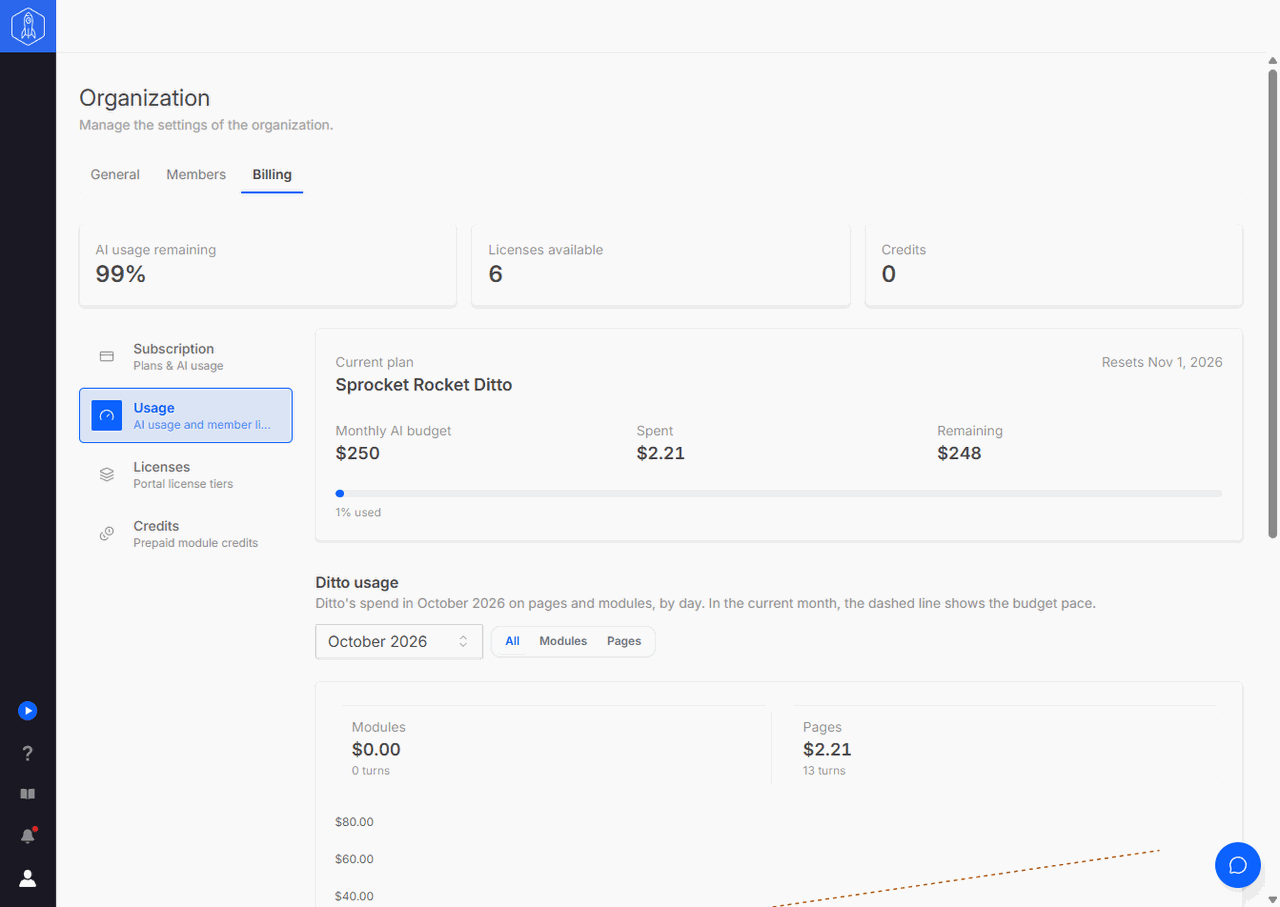
Usage shows the AI budget, Spent, and Remaining. On Sprocket Rocket AI the budget is a Monthly AI budget that resets on the date shown. On the Free plan it is a Free AI allowance: a one-time amount that does not reset. Below the budget, AI usage shows where it was spent. Pick a month to see that month's spend by day, split into Pages, for work in Page Builder, and Modules, for modules built and changed in Module Builder. Member usage shows each member's spend, and Conversations lists every conversation from that month.
To cap one member's share of the budget, select the pencil next to the member in Member usage, enter a Limit (USD), and select Save limit. Leave the field empty to remove the limit. A limit of $0 blocks that member from using AI.
Portal limits
Portals shows this month's AI spend for each connected portal. To cap a portal, select the pencil next to it and enter a Monthly limit (USD). Everyone who works in that portal shares the limit, owners and admins included. Leave the field empty to remove it. A limit of $0 stops AI in that portal.
Select Allocate this amount to reserve the limit out of your monthly budget. An allocated portal always has its amount, even when the rest of the budget runs out, and it stops at that amount instead of using the shared budget. Allocations can only promise money that is not spent yet, so a save that does not fit this month's budget is refused. If your budget drops below your allocations, for example after switching to a smaller plan, the page says so and each allocation shrinks by the same share for the rest of the month.
Agencies can invite a client as a member with access to only their portal, then give that portal a limit. The client sees usage for their portal only, never the organization's whole budget.
AI usage is shared by the organization. Review member access when someone no longer needs to use a portal or Sprocket Rocket AI.
Licenses
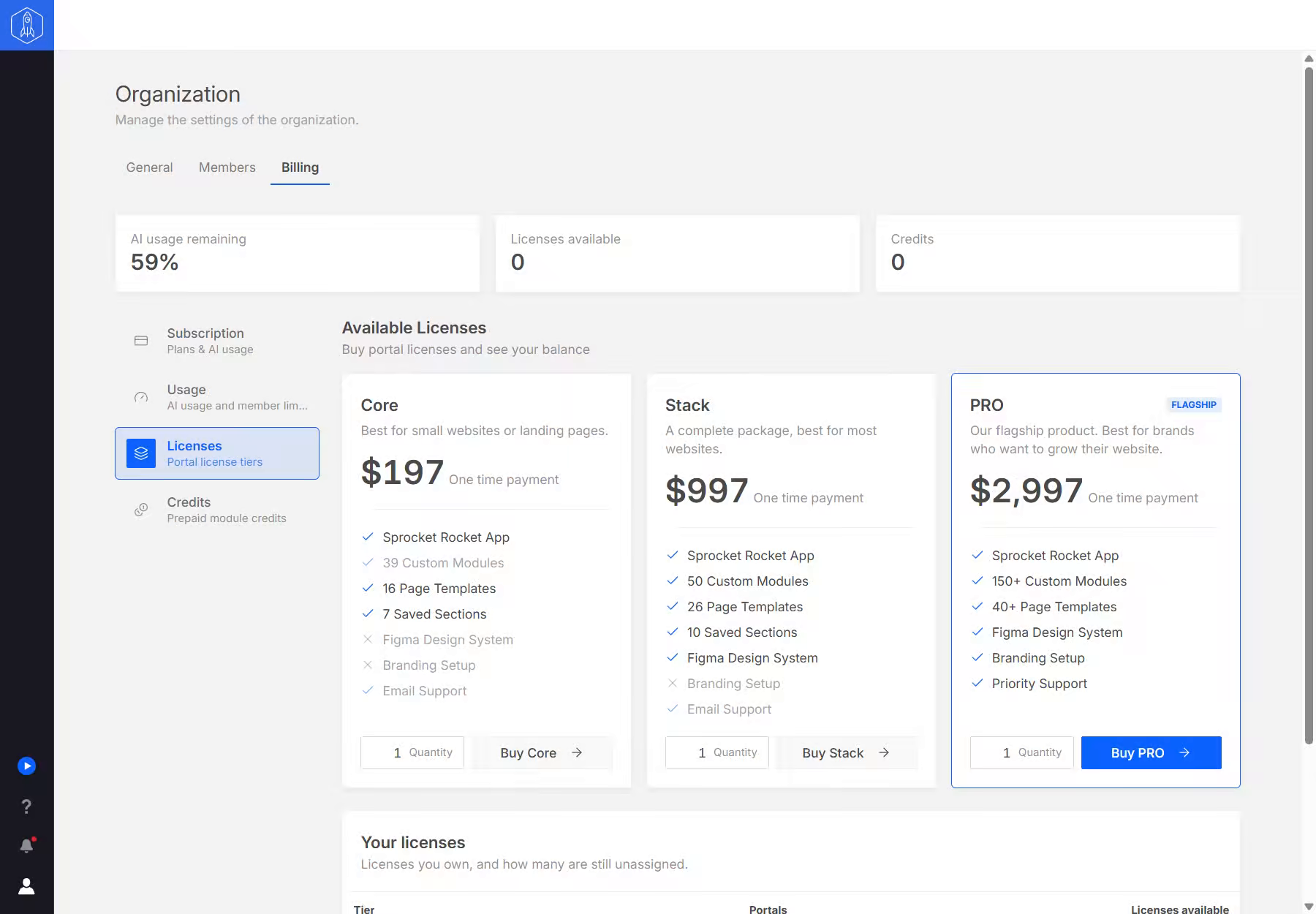
A portal's license decides which modules and templates it can install. On Licenses, Purchase licenses lists each license with a Quantity and a buy button, such as Buy Core. Your licenses shows how many of each you own and how many are on a portal. To put a license on a portal, open the portal and select Upgrade plan. See Change portal access.
You can buy Core, Stack, or PRO directly in the app. Core and Stack are also sold through the HubSpot Marketplace. When you open a connected portal with a detected Marketplace purchase, the app automatically assigns the matching Core or Stack license to that portal. You do not need to purchase it again or manually assign another license. A higher license already on the portal is retained.
A Marketplace purchase does not add Sprocket Rocket AI or an AI usage allowance to the organization. Read Marketplace themes and the app for purchase links and how the app installs a separate theme.
Credits
Credits can unlock eligible modules on a portal without changing the portal's full license. One credit unlocks one eligible module on one portal. Credit balance shows how many you have, Recent activity lists purchases, grants, and unlocks, and owners and admins can buy more under Buy prepaid credits.
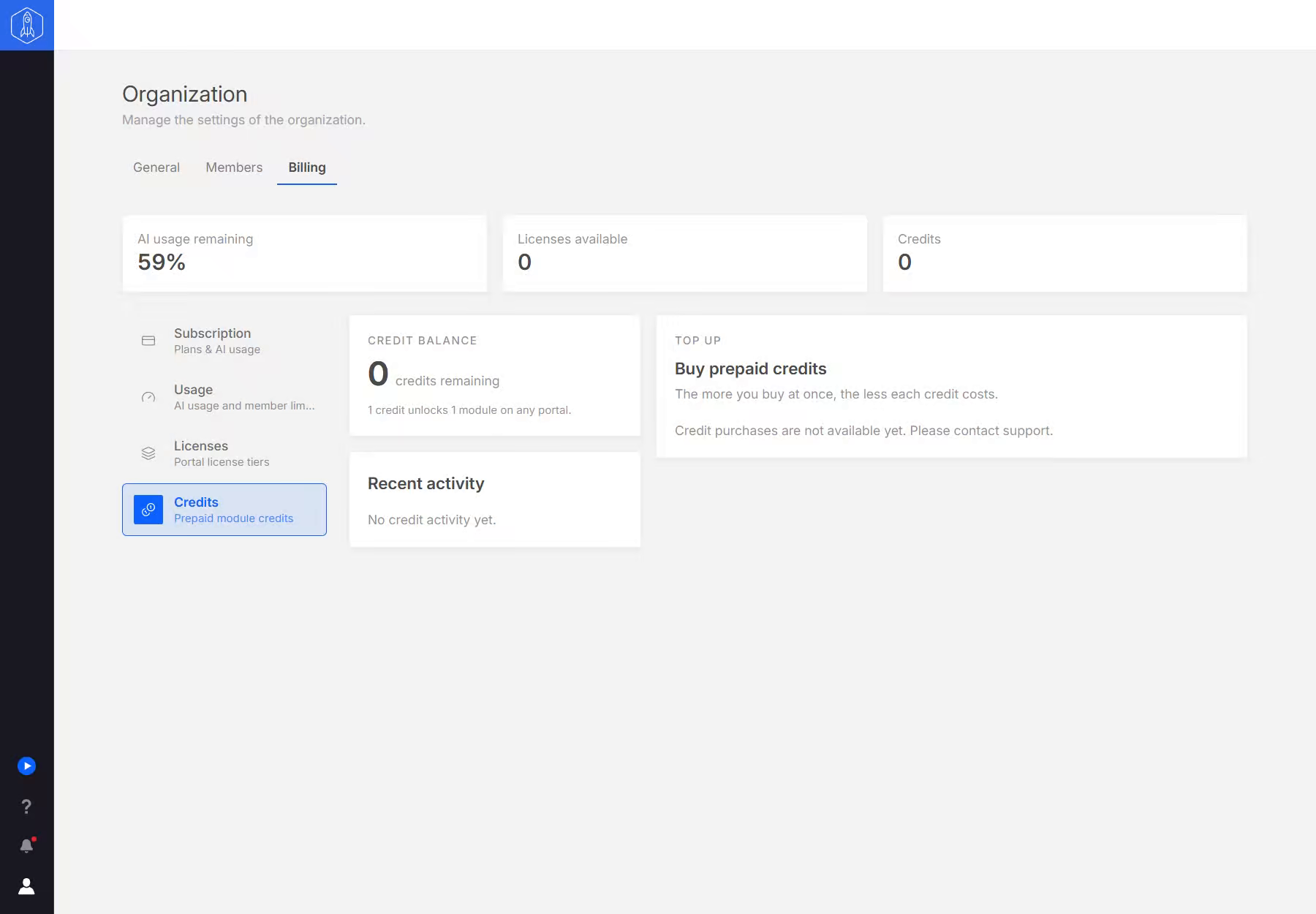
This example uses a new organization with no credits or activity. An organization that has bought, received, or spent credits will show those entries under Recent activity.