

Members and portal access
Add organization members and control which portals they can use.
Organization owners and admins invite members from the Members tab in organization settings. A person's role controls organization-level actions, while portal access controls which connected HubSpot accounts a member can open.
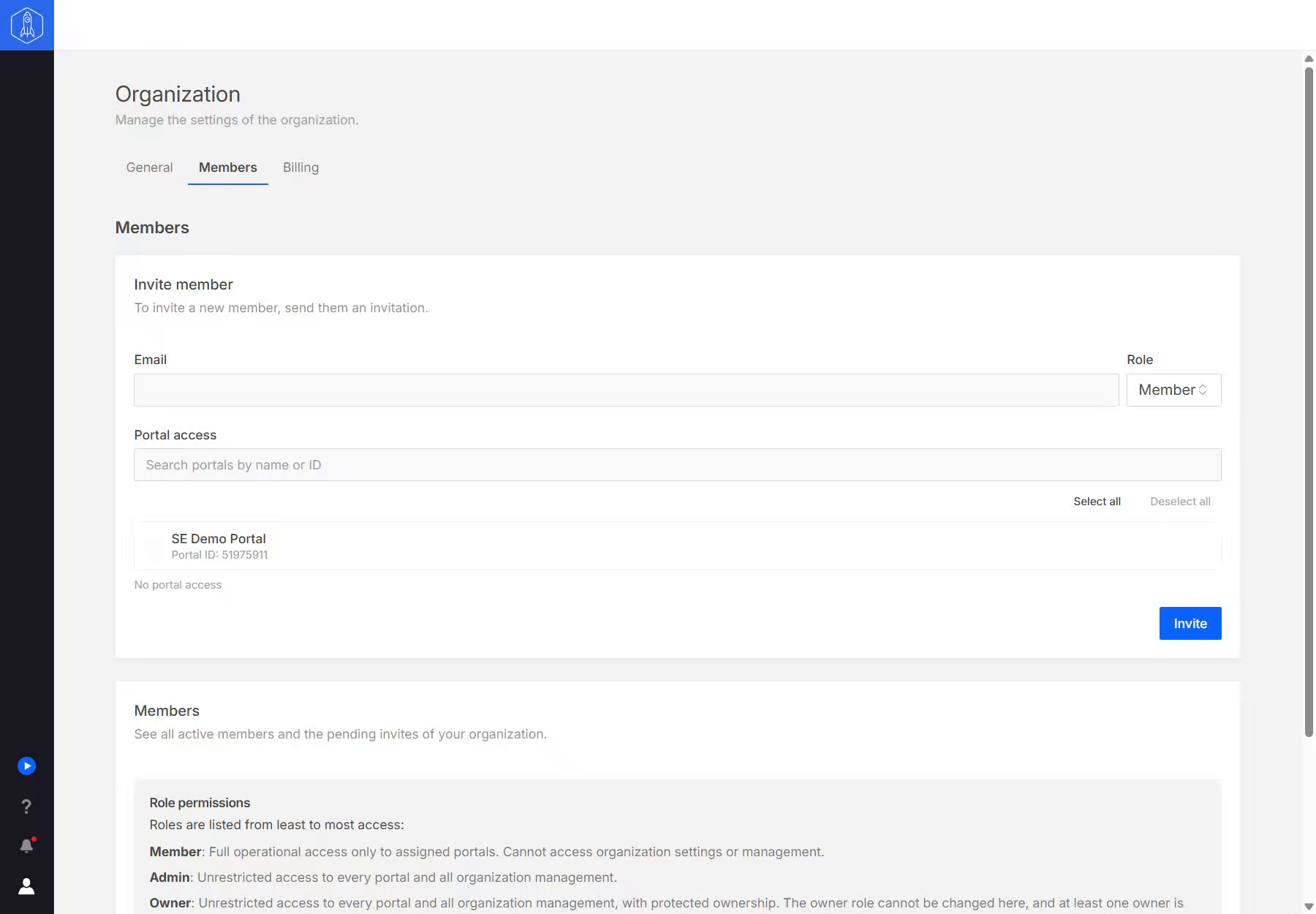
Roles
| Role | What they can do |
|---|---|
| Member | Full operational access to the portals they are assigned. They cannot open organization settings, including Billing. |
| Admin | Access to every portal and all organization management, including members, billing, restoring backups, and reconnecting portals. |
| Owner | Everything an admin can do. Only an owner can delete the organization or open the billing portal with Manage billing. The owner role cannot be changed here. |
Invite someone
- Under Invite member, enter the person's Email.
- Choose a Role.
- For a Member, select the portals they can use under Portal access. Owners and admins always have All portals.
- Select Invite.
The invitation appears under Pending invitations until it is accepted. Each person must sign in with their own account. Do not share one Sprocket Rocket login across a team.
Change access
In the members list, an owner or admin can change a person's role, edit a member's portal access, or select Remove member from the row's menu. Changing an admin to a member asks you to choose that person's portals first.
To cap how much of the shared AI budget a member can use, open Billing, then Usage, and select the pencil next to the member. Leave the limit empty for no limit. A limit of $0 blocks that member from using AI.
A member with access to only some portals uses AI in those portals and sees usage for them alone. To give a client a budget of their own, cap or allocate their portal under Portal limits.
Review member access when a person changes roles or leaves the organization. Billing, licenses, AI usage, and credits belong to the organization rather than an individual member.