

Pricing Comparison
Renders a heading and description, an optional monthly and yearly toggle with its own label and switch text, up to four pricing plan cards each with name, price, alt price, suffix, label badge, description, and up to two buttons, and below that a row-based feature comparison table of up to three categories with three features each and per-plan columns.
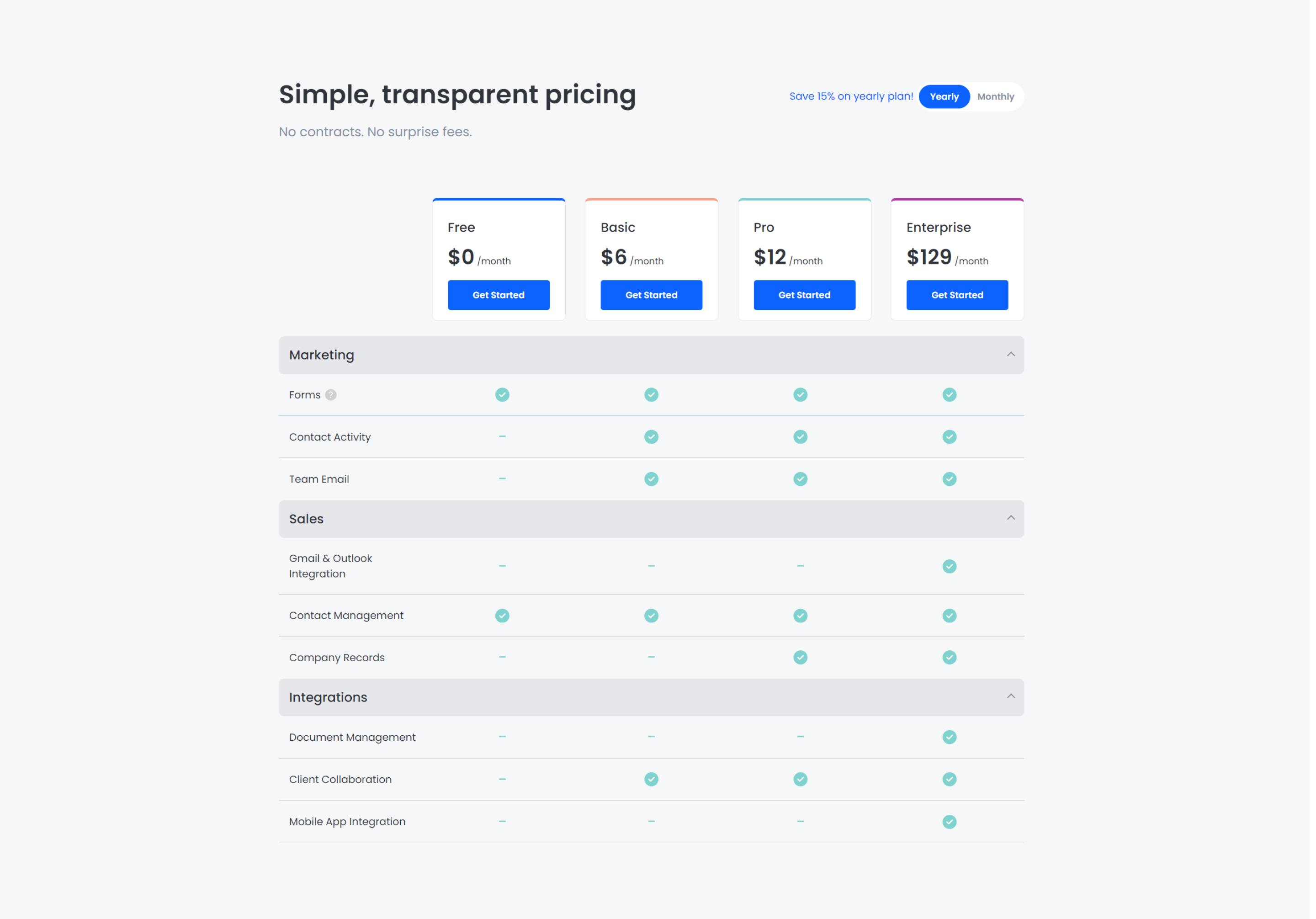
Pick this over the offer bar or gated content modules when the section needs multiple pricing tiers laid out side by side with a detailed row-by-row feature breakdown, not a single CTA banner or a lead capture form. It expects structured plan and feature data filled in for every column and works best when pricing and feature rows are comparable across all plans.
Use cases
- Four-tier pricing table
- Monthly vs yearly pricing toggle
- Feature comparison grid by plan
- Saas plan comparison with checkmarks
- Pricing page with highlighted plan label
Where it fits
- Included with: Free
- Page sections: Pricing, Comparison
Editable fields
Content tab
| Field | Type | Notes |
|---|---|---|
| Heading | Text | |
| Heading Tag | Choice | Size of the heading can be controlled from the style tab. Under the Secondary Font field. Options: H1, H2, H3, H4, H5, H6, Paragraph. |
| Description | Rich text |
Plan Toggle
| Field | Type | Notes |
|---|---|---|
| Enabled | Boolean | |
| Heading | Text | |
| Toggle Left | Text | |
| Toggle Right | Text |
Plans Repeats: min 1, max 4, default 4.
| Field | Type | Notes |
|---|---|---|
| Accent Color | Color | Top border color. |
| Name | Text | |
| Symbol | Text | Displays before the price. |
| Price | Text | Appears when the toggle is switched to the left position. |
| Alt Price | Text | Appears when the toggle is switched to the right position. |
| Suffix | Text | Displays after the price. |
| Alt Suffix | Text | Appears when the toggle is switched to the right position. |
| Label | Text | |
| Background | Color | |
| Color | Color | |
| Description | Rich text | Displays on mobile or when there are no rows present. |
Plans › Button Appears when the toggle is switched to the left position.
| Field | Type | Notes |
|---|---|---|
| Type | Choice | Options: HubSpot CTA, Link, None. |
| CTA | CTA | |
| Text | Text | |
| Link | Link | |
| Style | Choice | Other button styles can be set in the style tab. Options: Fill, Outline, Link, Gradient One, Gradient Two, None. |
Plans › Alt Button Appears when the toggle is switched to the right position.
| Field | Type | Notes |
|---|---|---|
| Type | Choice | Options: HubSpot CTA, Link, None. |
| CTA | CTA | |
| Text | Text | |
| Link | Link | |
| Style | Choice | Other button styles can be set in the style tab. Options: Fill, Outline, Link, Gradient One, Gradient Two, None. |
Rows Repeats: min 0, default 3. Deleting all rows will only display the Plan Cards.
| Field | Type | Notes |
|---|---|---|
| Category | Text | |
| Start Collapsed | Boolean | Configure this row's accordion to be collapsed initially. Users are required to click in order to open it. |
| Start Collapsed on Mobile | Boolean | Configure this row's accordion to be collapsed initially only on mobile. Users are required to click in order to open it. |
Rows › Features Repeats: min 1, default 3.
| Field | Type | Notes |
|---|---|---|
| Title | Text | |
| Tooltip | Text | Leave blank for no tooltip. |
Rows › Features › Columns Repeats: min 0, max 4, default 4.
| Field | Type | Notes |
|---|---|---|
| Icon | Icon | Click 'remove' above to delete this icon. |
| Icon Color | Color | |
| Text | Text | |
| Text Color | Color | |
| Purpose | Choice | The purpose of the icon, used for accessibility. If set to decorative, an additional attribute of aria-hidden="true" will be added to the icon. Options: Decorative, Semantic. |
Style tab
Change log
| Version | Change |
|---|---|
| 1.2.1 | Fixed issue with sticky pricing rows |
| 1.2.0 | Accessibility improvements |
| 1.1.2 | Fixed the pricing toggle closing on mobile. |
| 1.1.1 | Fixed heading alignment when the pricing toggle is disabled. |
| 1.1.0 | Added an Alt suffix option. Added an option to start rows collapsed on mobile. |
| 1.0.0 | Module Added |
Pillar Nav TOC 02
This module renders a table of contents for a pillar page, with a heading and optional description above a list of chapter links.
SR Gated Content 01
This module renders a scroll-triggered popup modal with an optional image, a heading, a rich text description, and an embedded HubSpot form for lead capture.