

Multistep Form
Renders an optional intro panel with label, heading, description and start button, followed by a multistep form with 3 tabbed steps by default, each step carrying its own tab label, tab name, up to 3 field groups, and previous or next buttons.
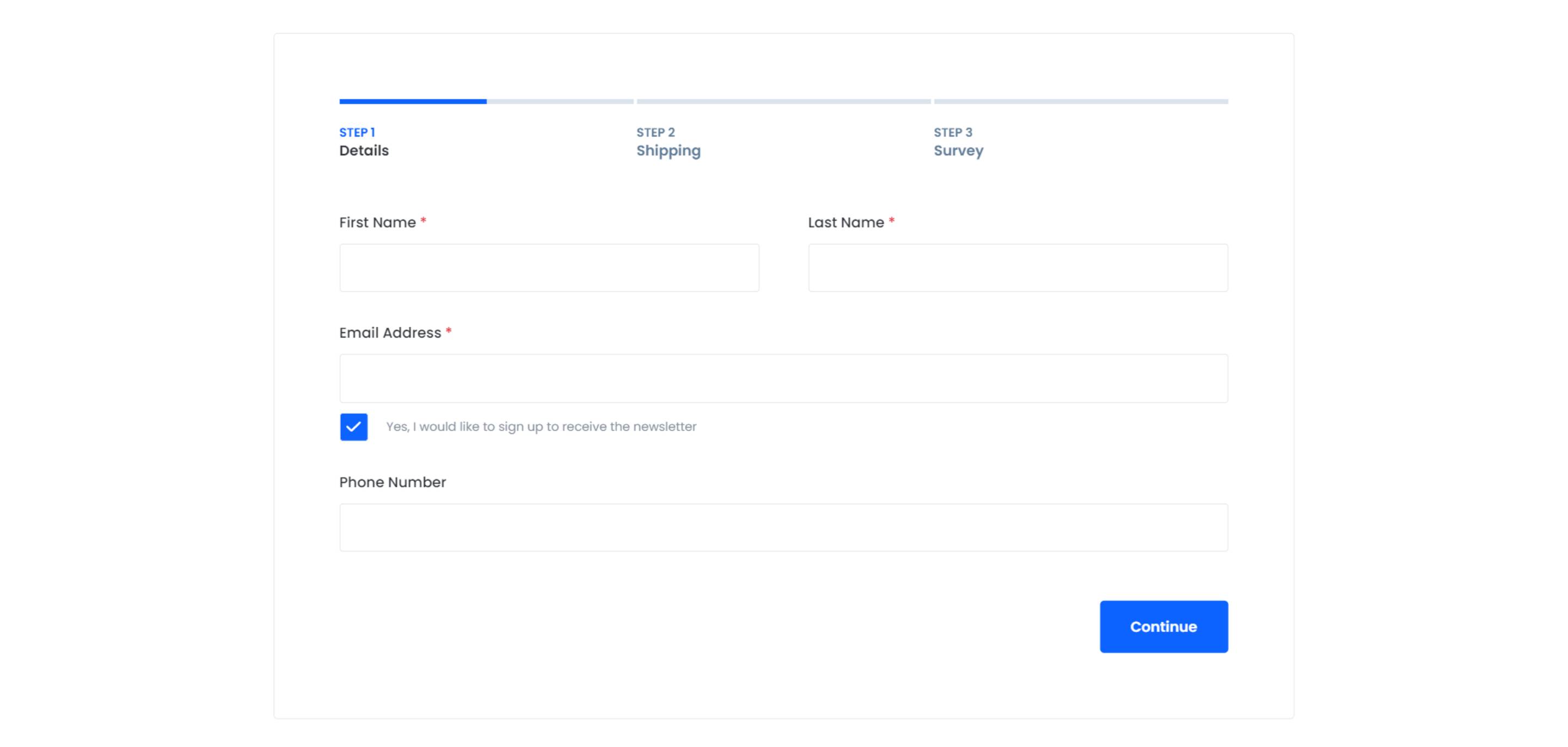
Pick this over the offer bars and gated content module when the conversion action itself needs to be broken into multiple steps with a visible progress tab bar, rather than a single-step inline form or a plain CTA banner. It requires a connected HubSpot form and works best for longer surveys, applications, or qualification flows where showing step progress reduces drop-off.
Use cases
- Multi-step qualification quiz
- Event registration form
- Product demo request survey
- Job application flow
- Lead qualification questionnaire
- Onboarding intake form
Where it fits
- Included with: Free
- Page sections: Form, Steps, Cta
Editable fields
Content tab
| Field | Type | Notes |
|---|---|---|
| ID | Text | Assign a ID to the module. |
| Class | Text | Assign a CLASS to the module. |
| Show Intro Overlay | Boolean | This is the overlay that will be displayed to the user when they first visit the page. It will be displayed on top of the form and will be removed when the user clicks the button. |
| Form | Form | A hidden form that will be not be displayed to the user. This is used be used to collect information from the steps, and send it to HubSpot. Each field in the form must match a field on the HubSpot form by using the form_property field property. |
| Exit Intent Form Submission | Boolean | Enabling this allows for automatic form submission when a user intends to leave the page, as long as an email was entered. |
Intro Overlay › Content
| Field | Type | Notes |
|---|---|---|
| Label | Text | |
| Heading | Text | |
| Description | Rich text | |
| Button Text | Text |
Steps Repeats: min 2, default 3. The steps that will be displayed to the user. Each step can have multiple fields.
| Field | Type | Notes |
|---|---|---|
| Label | Text | The name of the step. This will appear below the progress bar. |
| Name | Text | The name of the step. This will appear below the progress bar. |
Steps › Field Group Repeats: default 3. A group of fields. You can have up to 3 fields in a group.
| Field | Type | Notes |
|---|---|---|
| Top Margin | Number |
Steps › Field Group › Field Repeats: min 1, max 3, default 1.
| Field | Type | Notes |
|---|---|---|
| Field Type | Choice | The type of field that will be displayed to the user. 9 options, including Text, Email, Phone number. |
| Label | Text | The label that will be displayed to the user. |
| Form Property | Text | For all values except 'none', this must match a corresponding field on the HubSpot Form. If the value is 'none', it will act as an identifier to be used in conditional logics. |
| Description | Rich text | The description that will be displayed to the user. This will appear below the field label. |
| Placeholder | Text | The placeholder text that will be displayed in the field. This will disappear on focus. |
| Default Value | Text | The default value of the field. This will be pre-filled in the form. |
| Checked | Boolean | The checkbox will be checked default. |
| Required | Boolean | Make this field required. |
| Hidden | Boolean | |
| Conditional Logic | Boolean | |
| If this field | Choice | Options: is equal to, is not equal to, is greater than, is less than, is empty, is not empty. |
| value | Text | Multiple values can be specified by separating each with a comma (e.g. value1, value2). Each value corresponds to the respective property below. |
| then show | Text | The form property to show. Multiple properties can be specified by separating each with a comma (e.g. name1,name2). |
Steps › Field Group › Field › Choices Repeats: min 1, default 6. The choices that will be displayed to the user.
| Field | Type | Notes |
|---|---|---|
| Text | Text | The text that will be displayed to the user. |
| Value | Text | The value of the choice. This is what is sent to the form. |
Steps › Buttons The text that will be displayed on the previous and next buttons.
| Field | Type | Notes |
|---|---|---|
| Previous | Text | Not shown on the first step. |
| Next | Text |
Style tab
Change log
| Version | Change |
|---|---|
| 1.1.1 | Fixed issue with validation |
| 1.1.0 | Accessibility improvements |
| 1.0.6 | Added support for multiple conditional fields |
| 1.0.5 | Added support for hidden fields |
| 1.0.4 | Added field property value to rich text to allow for conditional logic |
| 1.0.3 | Added support for number fields and international phone numbers |
| 1.0.2 | Fixed issue with Radio buttons not working. |
| 1.0.1 | Fixed issue with Enter submitting the form |
| 1.0.0 | Module Added |
SR Testimonials 03
This module renders a heading and description above a two-column slider of up to three testimonial slides, each pairing an icon or image on one side with an author name, title, and rich text quote on the other.
Pillar Chapter Title 01
Renders a chapter marker for long-form pillar pages: a bordered pill label like 'Chapter 1', a heading, an optional description richtext block, and an optional row of CTA buttons.