

Change the theme brand
Preview a new brand on one page, then apply it to the theme or keep it to that page.
Sprocket Rocket AI can propose a brand for the whole site: colors, body and heading fonts, heading sizes and weights, the base font size, button shapes and colors, and the corner radius. Ask for it ("use our brand colors", "match the look of this site") and Sprocket Rocket reads the theme's current brand first.
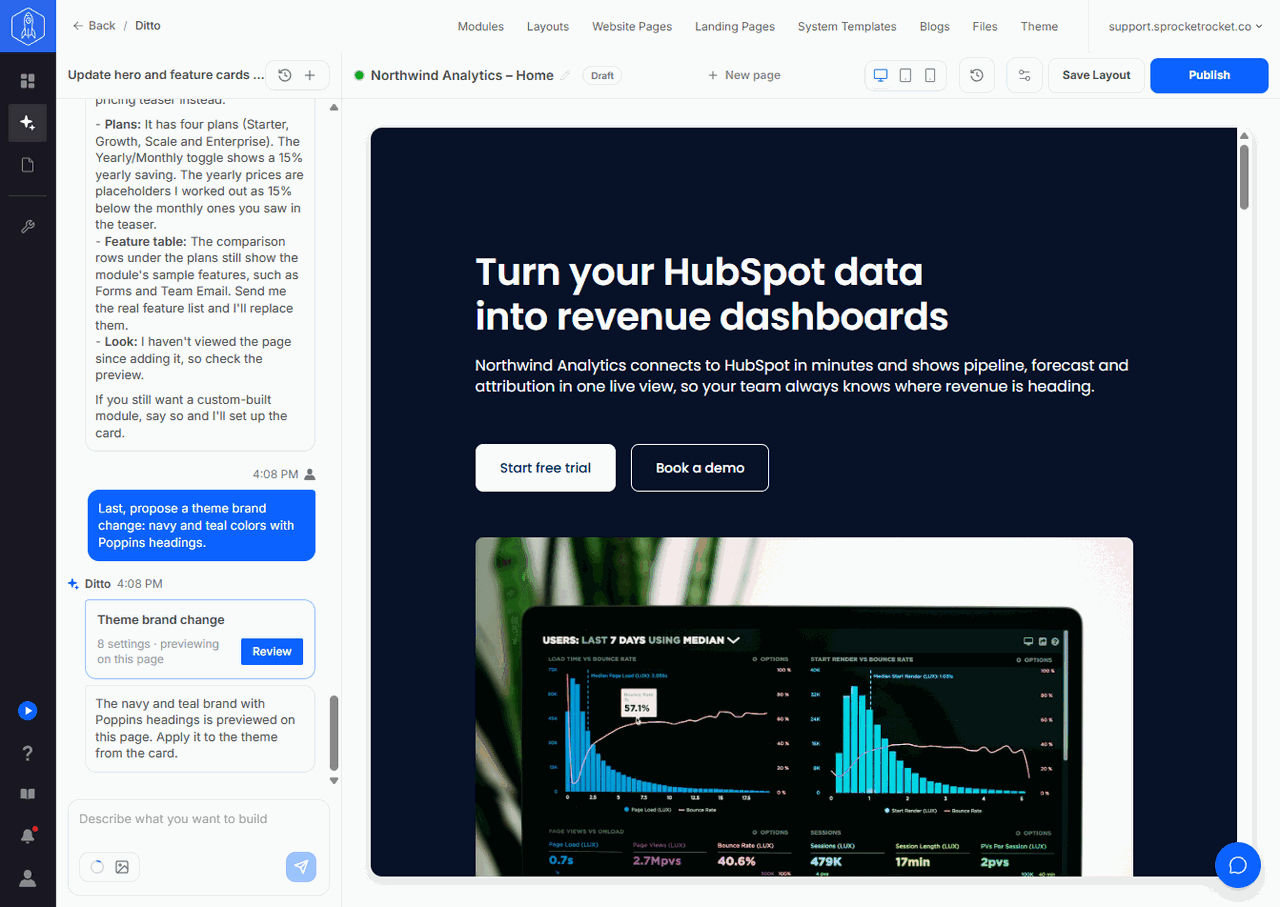
A theme brand changes every page of the installation, published pages included, the moment it is applied. So Sprocket Rocket never applies it on its own. It previews the brand on the page you're on and shows a card.
The Theme brand change card
The Theme brand change card counts the settings it changes and says it is previewing on this page. The canvas already shows the new brand. Other pages don't change.
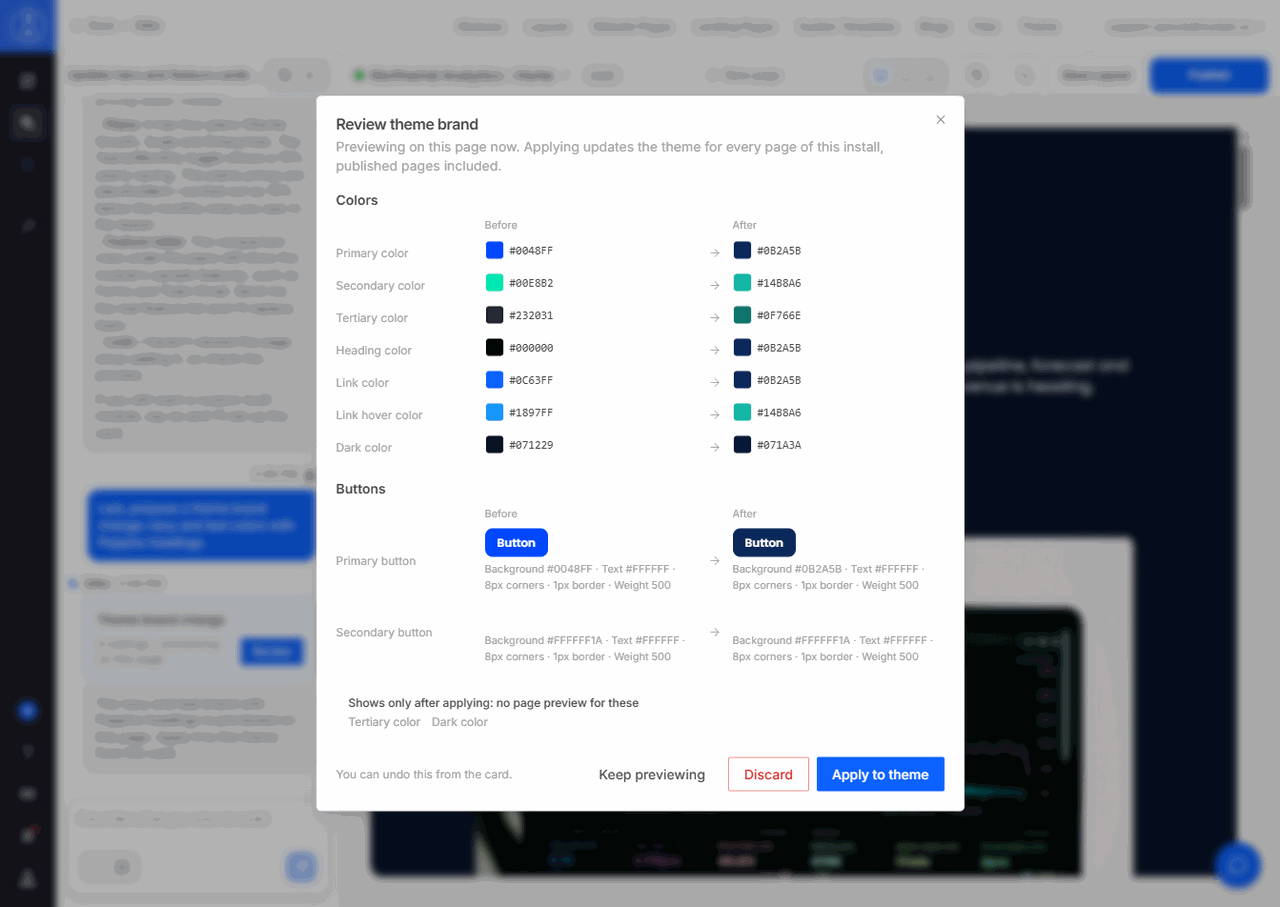
Select Review to open the Review theme brand dialog. It lists each setting under Colors, Typography, Buttons, and Other, with its value before and after. Notes at the bottom name:
- settings that won't change, because someone set them in HubSpot's theme editor
- settings that only show after applying, because the page preview can't show them
- settings this theme doesn't have
Then choose:
- Apply to theme writes the new brand into the theme's settings. It can take a few minutes to show on every page.
- Discard drops the change and removes the preview.
- Keep previewing closes the dialog and leaves the card open, so you can keep working with the preview on the page.
A newer brand proposal replaces an open one. The older card shows Replaced by a newer change.
The card's status follows the change: Applying to the theme, then Applied to theme. A card can also show Discarded, Replaced by a newer change, or Undone. Applying a brand leaves Sprocket Rocket no follow-up work to queue. It reads the theme's brand again whenever it needs it, so you can carry on in the chat and it works from the applied values.
Undo
After you apply a brand, the card offers Undo, which puts the theme's previous brand back. Sprocket Rocket saves a backup of the theme's settings before it applies.
- Only organization owners and admins can undo.
- Only the most recently applied brand can be undone. Undo a newer one first.
- Undo is refused when the theme's brand has changed since, because undoing could lose that change.
Anyone who can edit pages in the installation can apply or discard the card.
Brand styles for one page
Some brand changes belong to one page only, such as a campaign landing page with its own colors. Others are things the theme has no setting for. For those, Sprocket Rocket sets brand styles on the page itself: colors, fonts, heading sizes, and button styles on top of the theme, for this page only. They're saved to the draft and go live when you publish the page.
If a discarded brand's preview stays on the page, tell Sprocket Rocket to remove this page's brand styles.
See Theme settings for what each theme setting controls.