

Build your first page
Create, assemble, review, and publish a HubSpot page in Page Builder.
When the installation is ready, open it in Page Builder. Use it for the work you would normally do in HubSpot's page editor. This walkthrough takes you from an empty page to a published one. Each step links to the full detail in Page Builder.
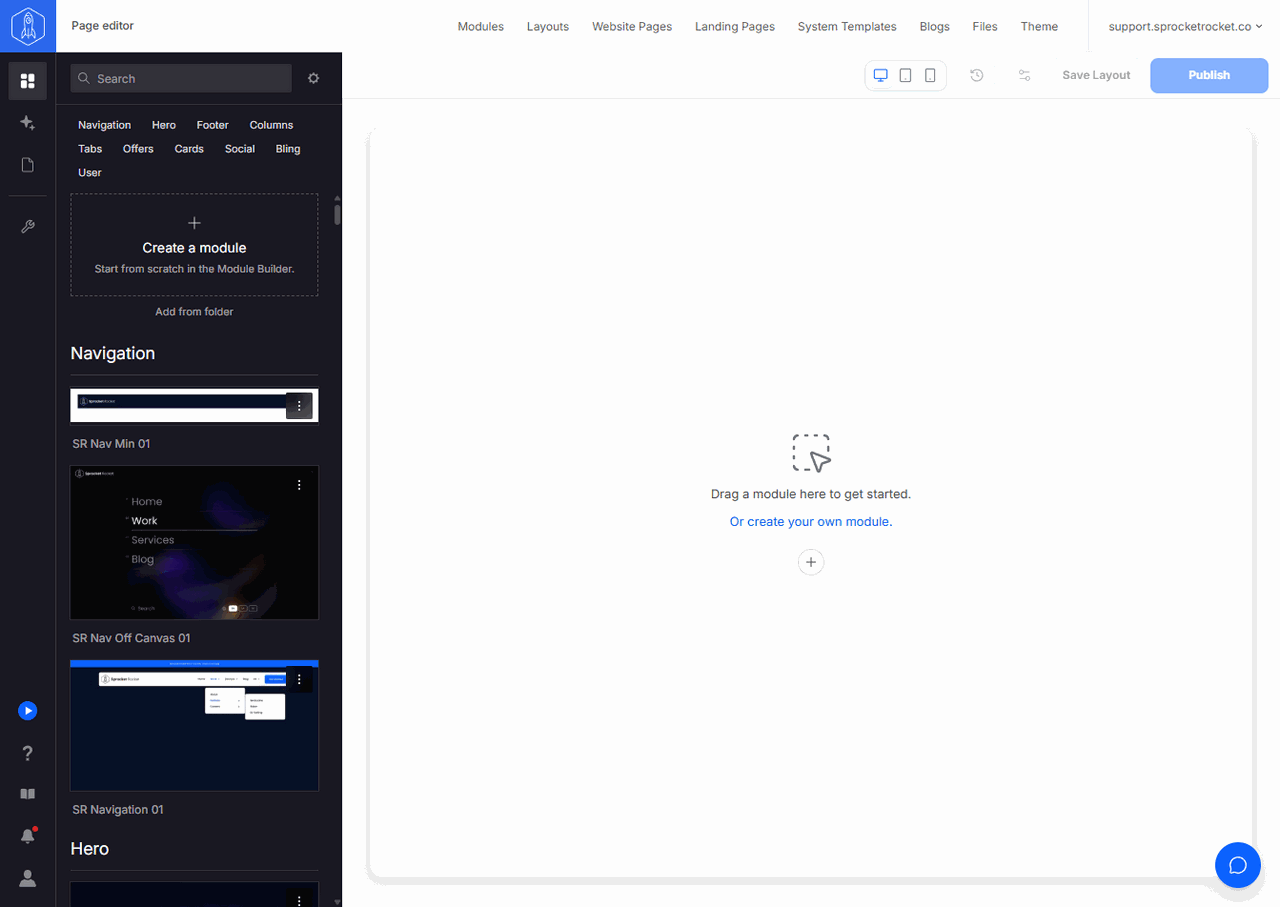
1. Create the page
Select New page. An empty editor opens at once, and the page is created in HubSpot with your first edit. To make a landing page instead of a website page, start from the Landing Pages tab in Pages, or change Page type in Page settings later. See Create a page.
2. Add modules
Select Add modules in the rail, find the section you need, and drag it onto the canvas. Continue adding modules in page order. Use Add section and a Section layout when you want modules side by side, and open a section's settings to change its spacing and background. See Add modules and Sections and columns.
If a module is missing, install or unlock it under Module management. Use a saved layout when you already have the page structure you need.
3. Edit the content
Click text on the canvas to edit it in place, and select an image, button, or heading to open its settings. Then open Page settings from the page menu to set the page title, URL, and meta description. See Edit by hand and Page settings and SEO.
Or let Sprocket Rocket AI build it
Sprocket Rocket AI is the faster way to a first draft. Select Sprocket Rocket AI in the rail and describe the page: its goal, the sections it needs, the copy that matters, and anything that must not change. You can link a site to match, or attach images. It works on the same draft, so you can adjust its work by hand afterwards. When no module can do what you need, it proposes a card to build one. See Work with Sprocket Rocket AI.
4. Review and publish
- Use the Desktop, Tablet, and Phone controls to check the page at each size.
- Read the page from top to bottom and remove placeholder copy.
- Test links, buttons, forms, and navigation.
- Select Publish when the page is ready to go live. On a page that is already live, the button is Update.
Every change saves a restore point, so you can go back from Version history at any time. Use Save Layout if you plan to reuse the page's structure.