

SR Hero Two Col 01
This hero renders two independent side-by-side columns, each with its own media (image or video), heading, richtext description, and CTA buttons, with the left column holding one CTA and the right column holding two.
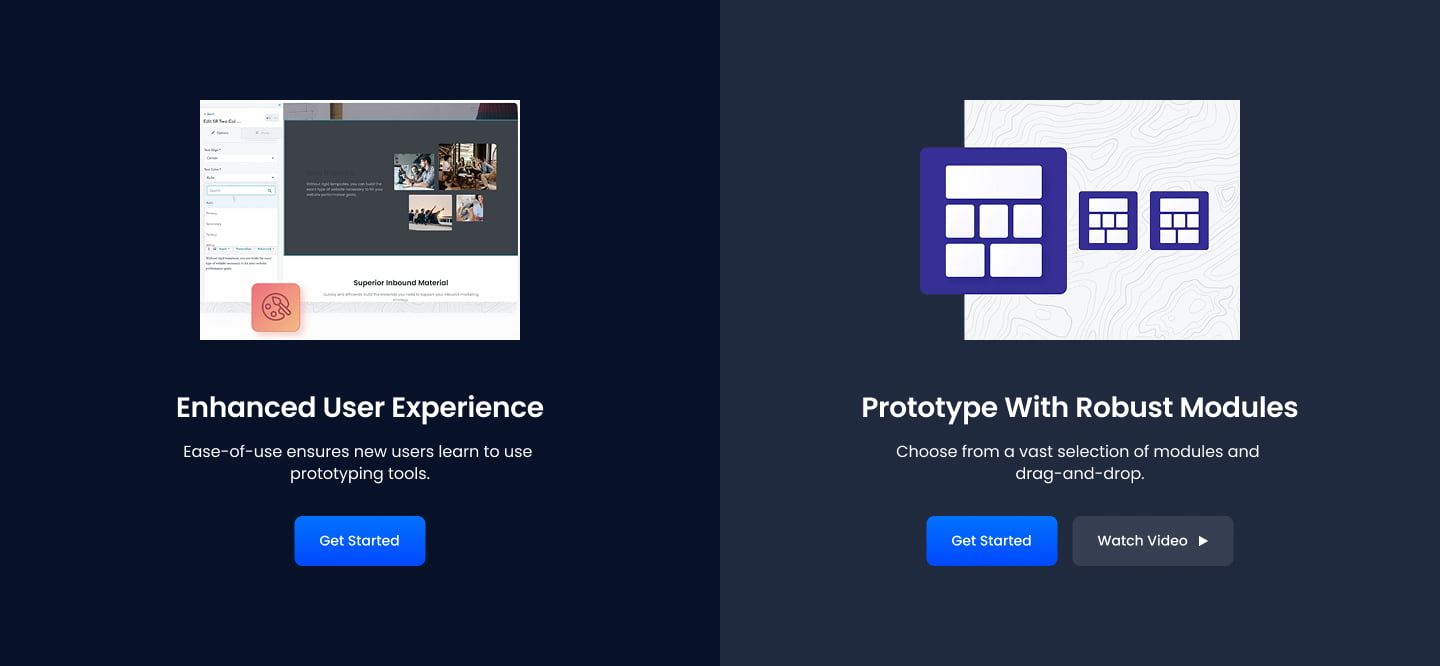
Pick this over the other hero modules when the page needs two separate messages or offers at once, such as two products, two audiences, or two plans, rather than one unified headline over a single background. Both columns need their own media and copy since nothing is shared between them, and there is no slider or form slot in either column.
Use cases
- Two product intro side by side
- Dual audience hero for buyers and sellers
- Compare two plans up top
- Split hero for two campaigns
- Two offers with separate ctas
- Before and after style split hero
Where it fits
- Included with: PRO
- Page sections: Hero
Editable fields
Content tab
| Field | Type | Notes |
|---|---|---|
| Enabled | Boolean | |
| ID | Text | Assign a ID to the module. |
| Class | Text | Assign a CLASS to the module. |
Left Column
| Field | Type | Notes |
|---|---|---|
| Media Type | Choice | Options: Image, Video, None. |
| Image | Image | |
| Video | File | Repeats: default 1. |
| Video Max Height | Number | |
| Loop Video | Boolean | |
| Description | Rich text | |
| Lead Text | Boolean | Turn on to make the Description text larger. |
| Text Align | Choice | Options: Auto, Left, Center, Right. |
| Text Color | Choice | 14 options, including Auto, Primary, Secondary. |
Left Column › Design Settings
| Field | Type | Notes |
|---|---|---|
| Background Option | Choice | Options: Image, Color, Custom, Gradient. |
| Background Gradient From | Color | |
| Background Gradient To | Color | |
| Background Image | Image | |
| Background Overlay Color | Color | |
| Background Color | Choice | 14 options, including Primary, Secondary, Tertiary. |
| Background Custom | Color | |
| Column Size | Text | Documentation. |
Left Column › Design Settings › Padding
| Field | Type | Notes |
|---|---|---|
| Top | Number | |
| Bottom | Number | |
| Left | Number | |
| Right | Number | |
| Units | Choice | Options: px, rem, vw, %. |
Left Column › Heading Repeats: min 0, default 2.
| Field | Type | Notes |
|---|---|---|
| Heading | Text | |
| Size | Choice | HTML heading size. Options: H1, H2, H3, H4, H5, H6, P. |
| Display Size | Choice | Size that heading is displayed at. 12 options, including Auto, H1, H2. |
| Color | Choice | 15 options, including Auto, Primary, Secondary. |
| Color | Color | |
| Align | Choice | Options: Auto, Left, Center, Right. |
| CSS Class | Text |
Left Column › CTA Repeats: min 0, default 1.
| Field | Type | Notes |
|---|---|---|
| CTA Type | Choice | Options: HubSpot CTA, HubSpot Payment, Button, Modal. |
| CTA Style | Choice | 26 options, including Primary, Secondary, Tertiary. |
| CTA | CTA | |
| Button Text | Text | |
| Modal Target | Text | |
| Link | Link | |
| Payment link | Payment | |
| Checkout behavior | Choice | Options: Open in a new tab, Sliding overlay. |
| CTA Size | Choice | Options: Small, Default, Large. |
| Add icon | Boolean |
Left Column › CTA › Default
| Field | Type | Notes |
|---|---|---|
| Background | Color | |
| Text | Color | |
| Border | Color |
Left Column › CTA › Hover
| Field | Type | Notes |
|---|---|---|
| Background | Color | |
| Text | Color | |
| Border Color | Color |
Left Column › CTA › Icon
| Field | Type | Notes |
|---|---|---|
| Icon | Icon | |
| Position | Choice | Options: Left, Right. |
| Purpose | Choice | The purpose of the icon, used for accessibility. If set to decorative, an additional attribute of aria-hidden="true" will be added to the icon. Options: Decorative, Semantic. |
Right Column
| Field | Type | Notes |
|---|---|---|
| Media Type | Choice | Options: Image, Video, None. |
| Image | Image | |
| Video | File | Repeats: default 1. |
| Video Max Height | Number | |
| Loop Video | Boolean | |
| Description | Rich text | |
| Lead Text | Boolean | Turn on to make the Description text larger. |
| Text Align | Choice | Options: Auto, Left, Center, Right. |
| Text Color | Choice | 14 options, including Auto, Primary, Secondary. |
Right Column › Design Settings
| Field | Type | Notes |
|---|---|---|
| Background Option | Choice | Options: Image, Color, Custom, Gradient. |
| Background Gradient From | Color | |
| Background Gradient To | Color | |
| Background Image | Image | |
| Background Overlay Color | Color | |
| Background Color | Choice | 14 options, including Primary, Secondary, Tertiary. |
| Background Custom | Color | |
| Column Size | Text | Documentation. |
Right Column › Design Settings › Padding
| Field | Type | Notes |
|---|---|---|
| Top | Number | |
| Bottom | Number | |
| Left | Number | |
| Right | Number | |
| Units | Choice | Options: px, rem, vw, %. |
Right Column › Heading Repeats: min 0, default 1.
| Field | Type | Notes |
|---|---|---|
| Heading | Text | |
| Size | Choice | HTML heading size. Options: H1, H2, H3, H4, H5, H6, P. |
| Display Size | Choice | Size that heading is displayed at. 12 options, including Auto, H1, H2. |
| Color | Choice | 15 options, including Auto, Primary, Secondary. |
| Color | Color | |
| Align | Choice | Options: Auto, Left, Center, Right. |
| CSS Class | Text |
Right Column › CTA Repeats: min 0, default 2.
| Field | Type | Notes |
|---|---|---|
| CTA Type | Choice | Options: HubSpot CTA, HubSpot Payment, Button, Modal. |
| CTA Style | Choice | 26 options, including Primary, Secondary, Tertiary. |
| CTA | CTA | |
| Button Text | Text | |
| Modal Target | Text | |
| Link | Link | |
| Payment link | Payment | |
| Checkout behavior | Choice | Options: Open in a new tab, Sliding overlay. |
| CTA Size | Choice | Options: Small, Default, Large. |
| Add icon | Boolean |
Right Column › CTA › Default
| Field | Type | Notes |
|---|---|---|
| Background | Color | |
| Text | Color | |
| Border | Color |
Right Column › CTA › Hover
| Field | Type | Notes |
|---|---|---|
| Background | Color | |
| Text | Color | |
| Border Color | Color |
Right Column › CTA › Icon
| Field | Type | Notes |
|---|---|---|
| Icon | Icon | |
| Position | Choice | Options: Left, Right. |
| Purpose | Choice | The purpose of the icon, used for accessibility. If set to decorative, an additional attribute of aria-hidden="true" will be added to the icon. Options: Decorative, Semantic. |
Style tab
Change log
| Version | Change |
|---|---|
| 3.0.0 | Stardust update |
| 2.2.0 | Accessibility improvements |
| 2.1.0 | Updated macros dependency |
| 2.0.1 | Added new Link options |
SR Hero Parallax 01
This hero renders a single centered content block with a heading, rich text description, and up to two CTA buttons layered over a full-bleed image or video background, with configurable height.
SR Hero Video 01
Renders a full-bleed hero with a heading, rich text description, and a single CTA button, set against a video or image background with optional parallax scroll.